Configuración
 Entrega rápida
 Tipos de pago


 Producto del mercado

DIY How to Control Servo Motor Angle Using Visuino Sequence Component
License: GNU Lesser General Public License Microcontrollers PWM Servo Arduino ESP32
In this tutorial, we will use a servo motor, Arduino UNO, and Visuino to control the servo motor angle using the sequence component.
The sequence component is perfect for situations where we want to trigger several events in sequence, in our case, servo motor degrees.
Watch the demonstration video.
What You Will Need
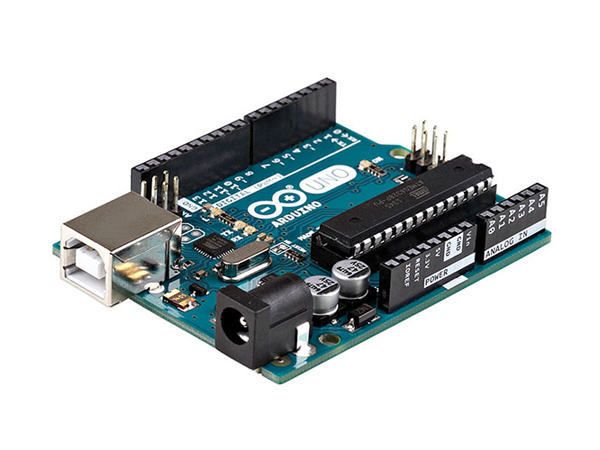
Arduino UNO (or any other Arduino)
Visuino program: Download Visuino

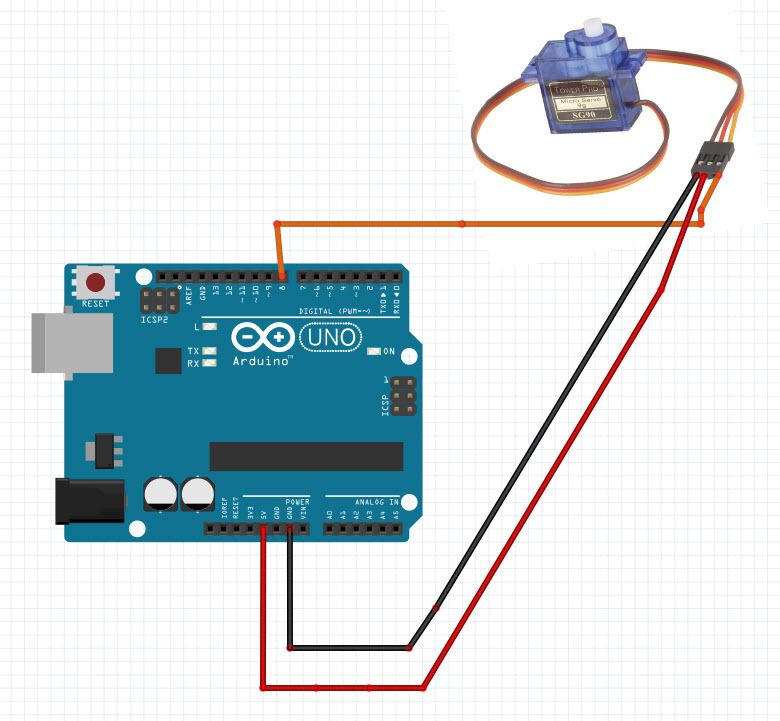
The Circuit
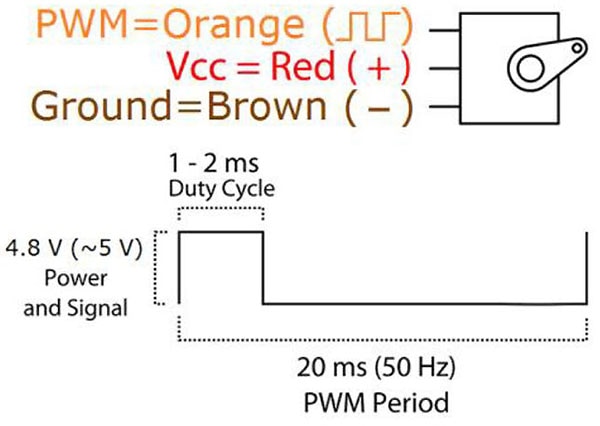
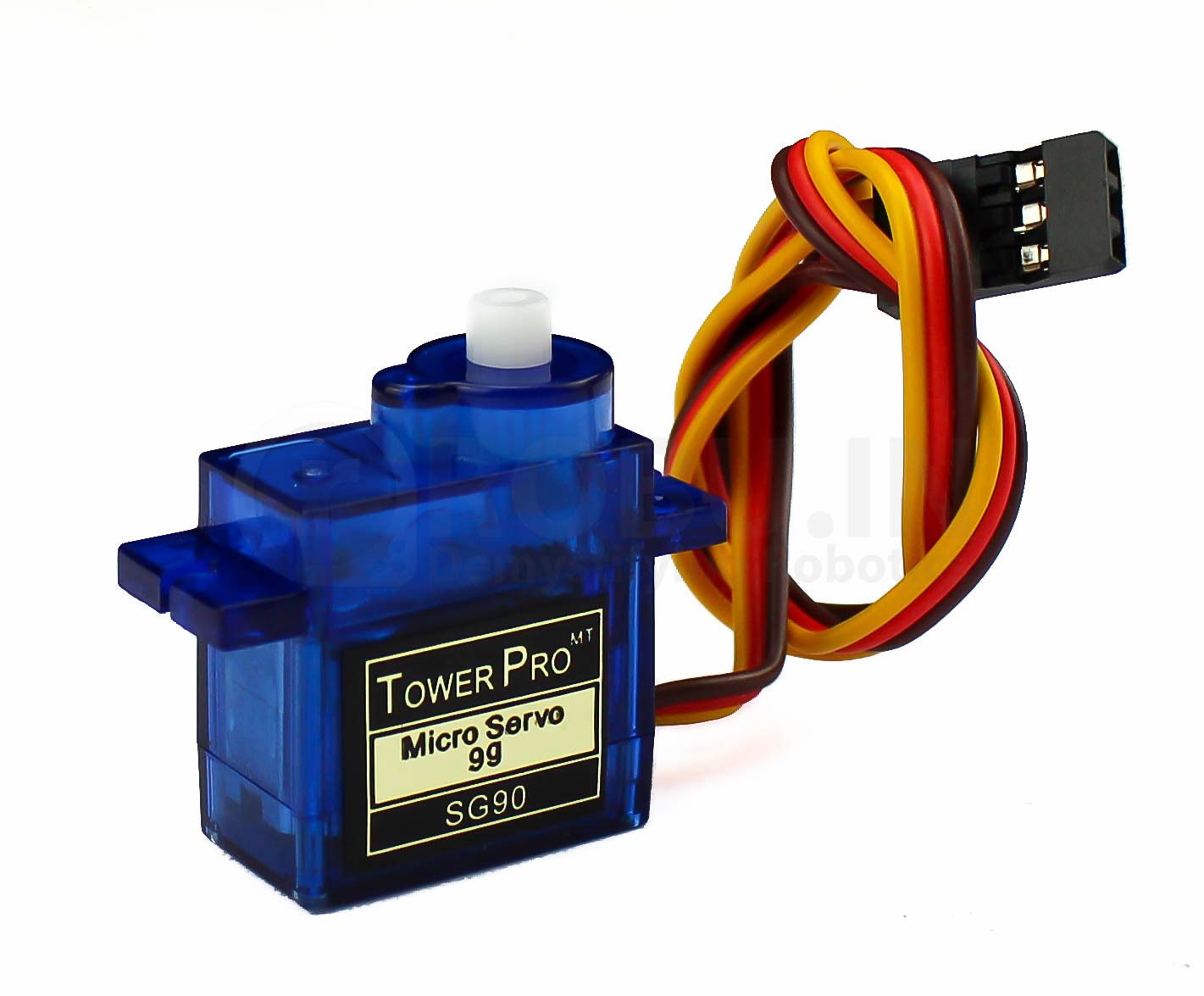
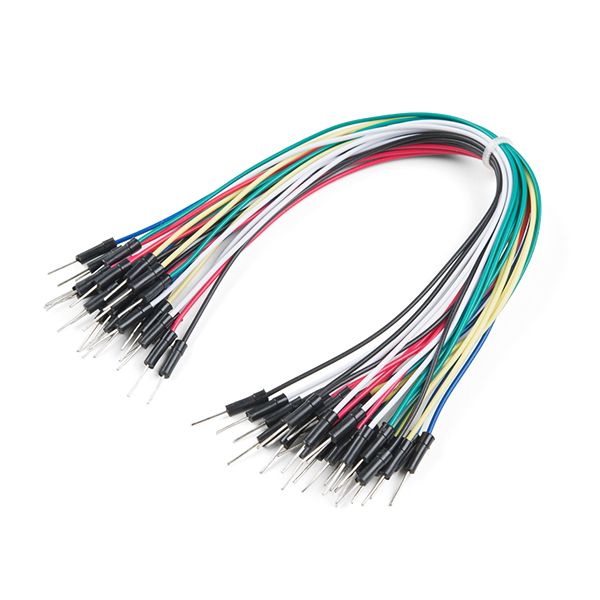
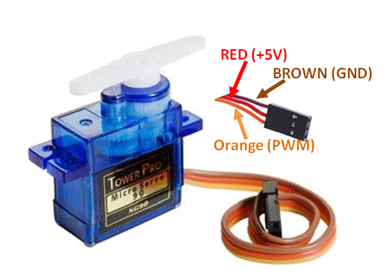
Connect the servo motor "Orange" pin to Arduino digital pin [8]
Connect the Servo motor "Red" pin to Arduino positive pin [5V]
Connect the servo motor "Brown" pin to the Arduino negative pin [GND].
Step 3
All you need to do is drag and drop components and connect them together. Visuino will create the working code for you, so you don’t have to waste time on creating the code. It will do all the hard work for you fast and easy! Visuino is perfect for all kinds of projects; you can easily build complex projects in no time!
Download the Latest Powerful Visuino Software

Start Visuino, and Select the Arduino UNO Board Type
To start programming the Arduino, you will need to have the Arduino IDE installed from here: http://www.arduino.cc/.
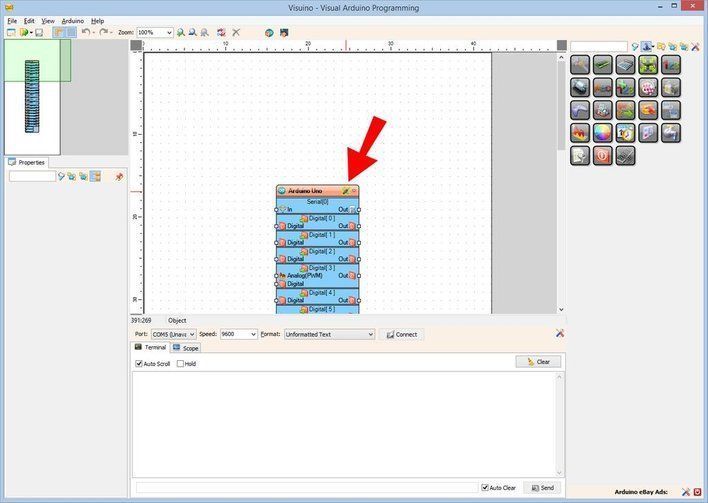
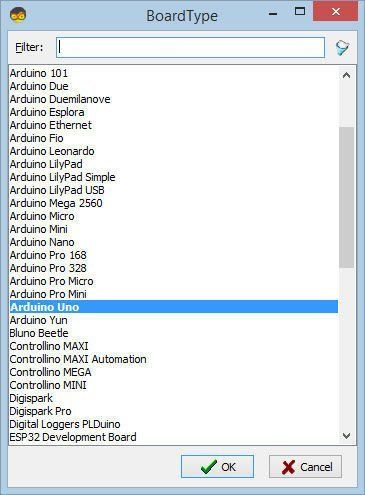
Please be aware that there are some critical bugs in Arduino IDE 1.6.6. Make sure that you install 1.6.7 or higher; otherwise, this will not work! If you have not done so, follow the steps to set up the Arduino IDE to program Arduino UNO! The Visuino: https://www.visuino.eu also needs to be installed. Start Visuino as shown in the first picture. Click on the "Tools" button on the Arduino component (Picture 1) in Visuino. When the dialog appears, select "Arduino UNO" as shown in Picture 2
In Visuino, Add Components
Add "Sequence" component
Add 5x "Analog Value" component
Add "Analog Multi Merger" component
Add "Divide Analog By Value" component
Add "Servo" component
In Visuino Set Components
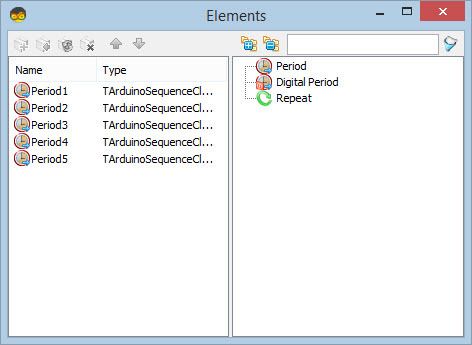
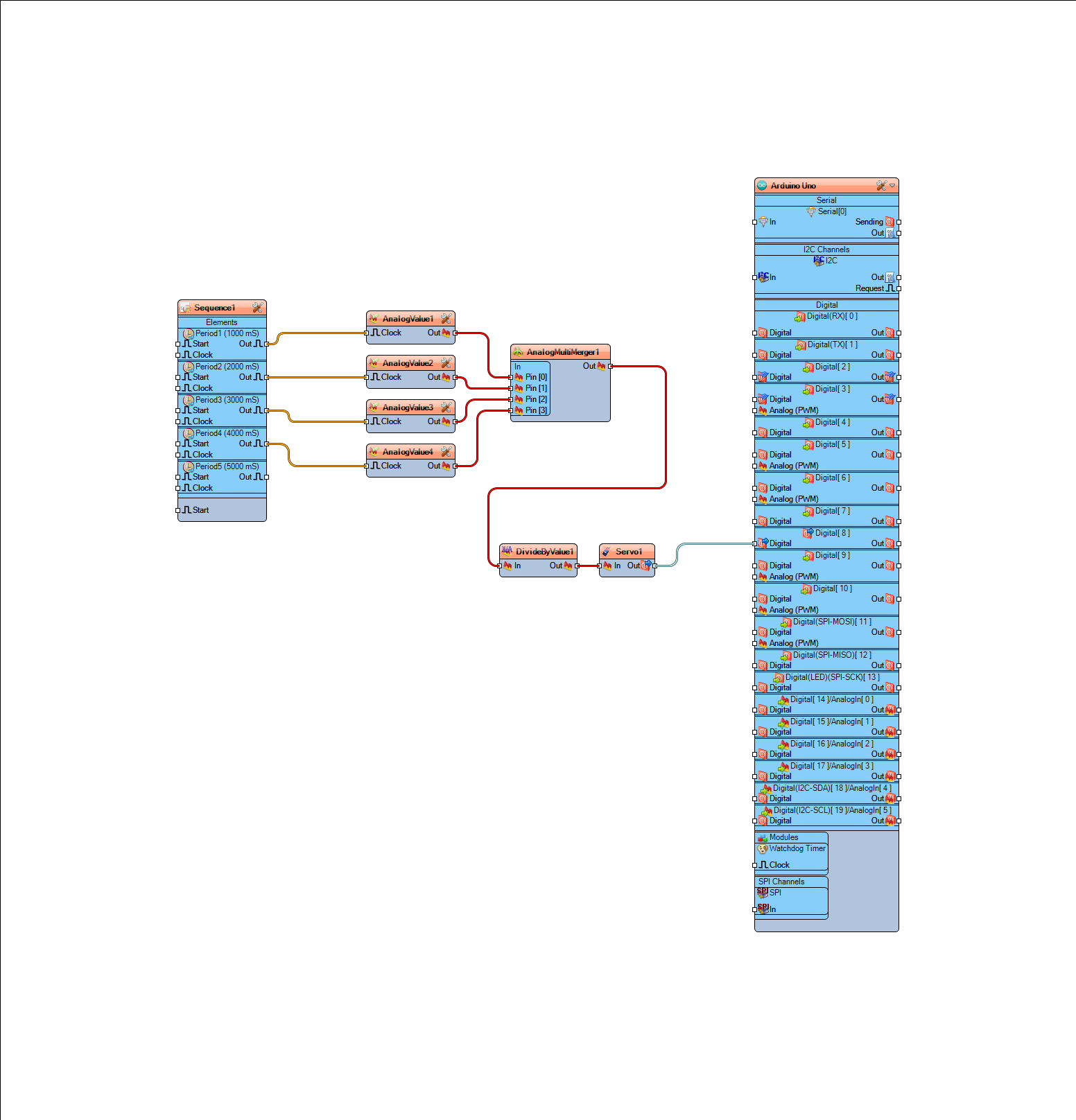
Select the "Sequence1" component, and double-click on it. In the "Elements" Dialog:
Drag 5X "Period" element to the left.
Select "Period1" element and under the properties window set "Delay" to "1000"
Select "Period2" element and under the properties window set "Delay" to "2000"
Select "Period3" element and under the properties window set "Delay" to "3000"
Select "Period4" element and under the properties window set "Delay" to "4000"
Select "Period5" element and under the properties window set "Delay" to "5000" >>this one will be used just for a pause at the end.
Now let's set degrees for the servo motor:
Select "AnalogValue1" component and under the properties window set "Value" to "0"
Select "AnalogValue2" component and under the properties window set "Value" to "60"
Select "AnalogValue3" component and under the properties window set "Value" to "120"
Select "AnalogValue4" component and under the properties window set "Value" to "180"
Select "AnalogMultiMerger1" component and under the properties window set "Input pins" to "4"
Select "DivideByValue1" component and under the properties window set "value" to "180"
In Visuino Connect Components
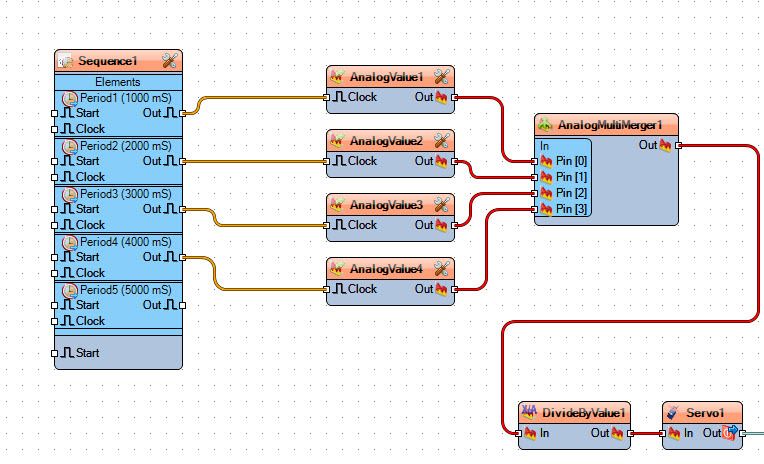
Connect "Sequence1">Period1 pin [Out] to "AnalogValue1" pin [clock]
Connect "Sequence2">Period1 pin [Out] to "AnalogValue2" pin [clock]
Connect "Sequence3">Period1 pin [Out] to "AnalogValue3" pin [clock]
Connect "Sequence4">Period1 pin [Out] to "AnalogValue4" pin [clock]
Connect "AnalogValue1" pin [Out] to "AnalogMultiMerger1" pin [0]
Connect "AnalogValue2" pin [Out] to "AnalogMultiMerger1" pin [1]
Connect "AnalogValue3" pin [Out] to "AnalogMultiMerger1" pin [2]
Connect "AnalogValue4" pin [Out] to "AnalogMultiMerger1" pin [3]
Connect "AnalogMultiMerger1" pin [Out] to "DivideByValue1" pin [In]
Connect "DivideByValue1" pin [Out] to "Servo1" pin [In]
Connect "Servo1" pin [Out] to Arduino digital pin [8]
Generate, Compile, and Upload the Arduino Code
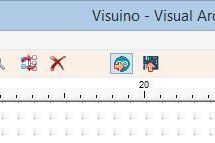
In Visuino, Press F9 or click on the button shown in Picture 1 to generate the Arduino code, and open the Arduino IDE
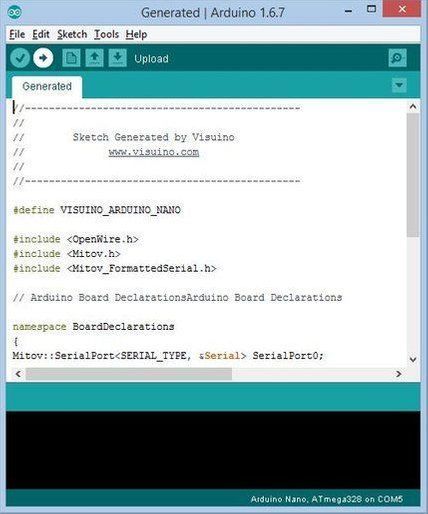
In the Arduino IDE, click on the Upload button to compile and upload the code (Picture 2)
Play
If you power the Arduino UNO module, the servo motor will start to move according to the degrees you set.
Congratulations! You have completed your project with Visuino. Also attached is the Visuino project that I created for this. You can download and open it in Visuino: https://www.visuino.eu