Configuración
 Entrega rápida
 Tipos de pago


 Producto del mercado

Número de parte del fabricante SC1176
SBC 1.0GHZ 4 CORE 512MB RAM
Raspberry Pi

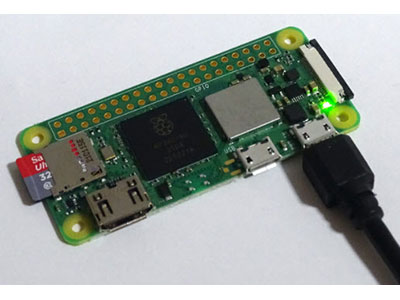
Wireless Wifi Raspberry Pi SBC
If you've built a project on a Pi Zero W or Zero 2 W, such as a camera, a sensor node, or anything that needs to stay connected and unattended, you've probably run into a common issue: it works great for a while, then quietly drops off the network. It still shows as "connected" in your router or controller, but SSH won't respond, and whatever service it's running goes dark. Eventually, it comes back on its own, or it doesn't, and you end up needing to manually power-cycle it.
This can be caused by a few known vulnerabilities in the way these boards handle WiFi, stacked on top of one another, so it is frequently impossible to pinpoint a single problem. Luckily, they can all be fixed on their own. Regardless of what the Pi is really doing, this guide walks through a number of common problems in the order that they should be addressed.
Everything here applies equally to the original Pi Zero W and the Zero 2 W, since both use WiFi chips with the same general failure modes. Commands assume a recent Raspberry Pi OS (Bookworm or Trixie).
Before changing anything, it helps to know what you're actually up against:
Work through these in order, as each one removes a variable, and fixing them out of order can make troubleshooting the next one harder.
This is the single highest-impact fix, and it's worth doing on every headless Pi regardless of what else is going on.
On the current Raspberry Pi OS, NetworkManager handles this rather than the old /etc/network/interfaces approach. Find your WiFi connection name:
nmcli connection show
Then disable power saving directly on that connection:
nmcli connection modify "YourConnectionName" 802-11-wireless.powersave 2
nmcli connection up "YourConnectionName"
A value of 2 explicitly disables power saving (as opposed to 1, which leaves it at the driver default "on"). This persists in the connection file and survives reboots.
Verify it actually saved:
iw wlan0 get power_save
This should return Power save: off. It's worth rechecking this if your connection starts acting up again later (I've previously had this setting randomly reset to default, along with an entire connection profile disappearing). It's an easy, fast thing to verify any time something seems off.
This sounds obvious, but it's worth being deliberate about, because a lot of the "random" instability people chase in software turns out to just be marginal RF signal strength.
iw wlan0 link
Note the value in dBm:
If you're consistently in marginal territory, a few options:
When something does go wrong, you want logs from before the failure, and if you have to power-cycle to recover, the default journald configuration on Raspberry Pi OS often keeps logs in volatile (RAM-only) storage, which means anything useful is wiped the moment you reboot.
Check your current setting:
cat /etc/systemd/journald.conf | grep -i storage
If Storage= is commented out or set to volatile, switch it to persistent, but critically, also set an explicit size cap. By default, journald will use up to 10% of the filesystem for logs, which on a Pi's SD card could be several gigabytes. On a small embedded device, that's unacceptable.
sudo mkdir -p /var/log/journal
sudo nano /etc/systemd/journald.conf
Set:
Storage=persistent
SystemMaxUse=50M
SystemKeepFree=200M
SystemMaxUse=50M caps the total journal size at 50MB — plenty of history for troubleshooting purposes. SystemKeepFree=200M is a secondary safety net that tells journald to stop writing before the SD card gets that low, regardless of the size cap. Journald respects whichever limit is hit first.
sudo systemctl restart systemd-journald
With these limits in place, persistent logging is a permanent and safe configuration rather than just a temporary troubleshooting measure. After the next dropout, you'll have real data to look at instead of starting from nothing.
Even with power management disabled and good signal, the WiFi chips on these boards have a known failure mode at the firmware level: the WiFi firmware itself can lock up internally while the kernel driver still reports the interface as associated. Your router or network controller will still show the device as "connected" because the 802.11 association hasn't been torn down, but no actual traffic is flowing in either direction.
There's no real fix for this at the OS level since it's a firmware issue inside the chip itself. The practical answer is to detect it and recover automatically.
sudo nano /usr/local/bin/wifi_watchdog.sh
Then add the following to the file:
#!/bin/bash

PING_TARGET="192.168.1.1"  # Set this to your gateway or another reliably-up host
PING_COUNT=3
FAIL_THRESHOLD=3
FAIL_FILE="/tmp/wifi_watchdog_fails"

if [ ! -f "$FAIL_FILE" ]; then
    echo 0 > "$FAIL_FILE"
fi

FAILS=$(cat "$FAIL_FILE")

if ping -c "$PING_COUNT" -W 3 "$PING_TARGET" > /dev/null 2>&1; then
    echo 0 > "$FAIL_FILE"
    logger "wifi_watchdog: ping OK, fail counter reset"
else
    FAILS=$((FAILS + 1))
    echo "$FAILS" > "$FAIL_FILE"
    logger "wifi_watchdog: ping failed, consecutive failures: $FAILS"

    if [ "$FAILS" -ge "$FAIL_THRESHOLD" ]; then
        logger "wifi_watchdog: threshold reached, attempting WiFi restart"

        nmcli connection down "YourConnectionName"
        sleep 5
        nmcli connection up "YourConnectionName"
        sleep 15

        if ping -c 3 -W 3 "$PING_TARGET" > /dev/null 2>&1; then
            logger "wifi_watchdog: WiFi restart successful"
            echo 0 > "$FAIL_FILE"
        else
            logger "wifi_watchdog: WiFi restart failed, rebooting"
            echo 0 > "$FAIL_FILE"
            /sbin/reboot
        fi
    fi
fi
Replace PING_TARGET with your gateway's IP (or any device on your network that's reliably up), and YourConnectionName with the connection name from Step 1.
sudo chmod +x /usr/local/bin/wifi_watchdog.sh
This is intentionally a two-stage recovery. A full reboot is disruptive since it drops whatever else the Pi is doing, so the script first tries just cycling the WiFi connection, which is often enough to clear a firmware hang on its own. Then, if that doesn't restore the connection, it escalates to a full reboot.
A systemd timer is more reliable here than a cron job, since systemd's scheduler runs independently and isn't affected by the same conditions that might be causing a cron daemon to stall.
sudo nano /etc/systemd/system/wifi-watchdog.service
Add the following to this new file:
[Unit]
Description=WiFi Watchdog

[Service]
Type=oneshot
ExecStart=/usr/local/bin/wifi_watchdog.sh
Create another file:
sudo nano /etc/systemd/system/wifi-watchdog.timer
Add paste in the following:
[Unit]
Description=WiFi Watchdog Timer
After=network-online.target

[Timer]
OnBootSec=5min
OnUnitActiveSec=2min
Persistent=true

[Install]
WantedBy=timers.target
Every 2 minutes is frequent enough to catch a hang quickly without adding meaningful overhead. OnBootSec=5min gives the network plenty of time to come up cleanly after boot before the first check runs (remember, these are Pi Zero boards, so with the low power design, booting can take some time).
sudo systemctl daemon-reload
sudo systemctl enable --now wifi-watchdog.timer
sudo systemctl list-timers wifi-watchdog.timer
That last command confirms it's scheduled and shows the next run time.
The WiFi watchdog above handles network-level hangs, but it's still running in userspace, so if the Pi suffers a more fundamental hang (kernel panic, complete system lockup), the WiFi watchdog can't help because nothing is executing to run it. For that, the Pi's onboard hardware watchdog is the right tool: a piece of silicon that forces a hard reboot if the OS stops checking in, independent of whatever state the OS itself is in.
Enable the watchdog overlay and kernel module:
echo 'dtparam=watchdog=on' | sudo tee -a /boot/firmware/config.txt
echo 'bcm2835_wdt' | sudo tee -a /etc/modules
Configure systemd to feed the watchdog:
sudo nano /etc/systemd/system.conf
Find and uncomment (or add):
RuntimeWatchdogSec=15
RebootWatchdogSec=2min
RuntimeWatchdogSec=15 means if systemd fails to check in for 15 consecutive seconds, the hardware forces a reboot. A reboot after that.
These two watchdogs, software/WiFi and hardware, cover different failure scenarios and, when run together, should ensure reliable connection performance.
Connection profiles may disappear without warning. In one case, while I was troubleshooting a lost connection, a WiFi connection profile vanished from /etc/NetworkManager/system-connections/ entirely. I wasn't able to conclusively identify the cause, but it's a reminder to periodically verify nmcli connection show actually lists your connection, especially after any system updates. If it's gone, re-adding it is straightforward:
sudo nmcli connection add type wifi \
  con-name "YourConnectionName" \
  ifname wlan0 \
  ssid "YourSSID" \
  wifi-sec.key-mgmt wpa-psk \
  wifi-sec.psk "YourPassword"

sudo nmcli connection modify "YourConnectionName" 802-11-wireless.powersave 2
sudo nmcli connection up "YourConnectionName"
"Connected" in your router or controller doesn't mean "working." As mentioned in Step 4, an 802.11 association can persist at the radio level even when the firmware has stopped passing actual traffic. Don't rule out WiFi issues just because the device shows as online elsewhere on your network; that status only confirms the original handshake succeeded, not that it's still functioning.
SSH being slow or flaky is itself a signal, not just an inconvenience. If SSH connections are sluggish to establish or drop mid-session even when the Pi otherwise seems to be working, treat that as an early warning of marginal signal or a fading WiFi connection, and review Step 2 before again.
________________________________________None of these individually guarantees 100% uptime since the underlying WiFi chips on these boards have real, documented limitations, but together they turn "wanders offline for days at a time" into "recovers on its own within minutes," which for most unattended projects is the practical goal.