Configuración
 Entrega rápida
 Tipos de pago


 Producto del mercado

Número de parte del fabricante 114993369
SENSECAP CARD TRACKER T1000-E
Seeed Technology Co., Ltd

Wireless LoRa Microcontrollers Single Board Computers XIAO
In the previous part, we covered how LoRa and mesh networking operate before giving a brief overview of Meshtastic and MeshCore. This time we get hands-on: flashing three nodes with the Meshtastic firmware, configuring them through the phone app, and sending our first broadcast, direct, and encrypted channel messages.
Meshtastic is mesh networking built on LoRa radios, and all nodes are (more or less) equal. To send a message from node A to node B, you broadcast it; every node that hears it rebroadcasts to the nodes it can hear, until the message reaches B. There is no specialized infrastructure; you extend coverage by adding nodes, and the network is self-healing.

The downside is traffic, as every message is rebroadcast by every node that hears it up to a maximum hop count. To limit the flooding, client nodes hold off a moment to see whether a neighbor is already rebroadcasting the same message. Note that the original transmission does not count as a hop (often called a “zero-hop transmission”). Only rebroadcasts count as hops.
Each country regulates how unlicensed operators can broadcast, including frequency and power limits. The Meshtastic docs under Configuration > Radio > LoRa list every region and its frequency range. Set your node to a frequency that is legal where you live, and buy an antenna for that range.
I am in the United States, so I want a 915 MHz antenna and the US region setting. In the European Union, you will use either the 433 MHz or 868 MHz band, with 868 MHz more popular in most areas. Nodes on different bands cannot talk to each other.
The US limit is 1 W into the antenna in the 915 MHz band, but do not worry too much about the specifics. Off-the-shelf nodes obey these limits as long as you set the right region. Licensed hams can exceed them, but cannot encrypt their traffic.
Before configuring anything, it helps to know what the presets do. Each preset bundles three LoRa radio settings:
You do not need to set these by hand. In each preset name, the first word describes the distance you are optimizing for, and the second the relative data rate within that band. LongFast is the default and what most meshes use: expect a few kilometers per hop with decent antennas and line of sight, at roughly 1 kbps. Very Long Slow drops below 200 bps but reaches farther, while short-range presets climb to about 22 kbps.
The other crucial setting is the frequency slot, which works like a Wi-Fi channel. Each region's band is divided into slots, and each preset has a different recommended default to reduce interference. Here is the part that trips people up: your preset and slot must match every other node in the mesh you want to join. When starting out, use LongFast and its default slot.
You can read more about the presets and radio settings here.
Many nodes ship pre-flashed, but here is how to update to the latest version using the web flasher at flasher.meshtastic.org. In each case, select your target device, pick the latest stable firmware, and follow the prompts.
XIAO ESP32S3: Enter bootloader mode by holding the small "B" button next to the USB port while plugging in the cable, then select the board in the flasher and click Flash. A full erase is a good idea on a first flash, but skip it when updating (erasing wipes the public and private keys in non-volatile memory). Afterward, attach the wider 2.4 GHz antenna to the main board and the narrow antenna to the LoRa daughterboard, then snap the two together.
XIAO nRF52840: Seeed recommends erasing the flash on nRF52840 kits first. Click the trash can icon in the flasher, enter DFU mode, and the board mounts as a drive. Download the erase UF2 and copy it onto that drive, then repeat with the actual firmware UF2. This board has an onboard Bluetooth antenna, so it only needs the narrow LoRa antenna.
SenseCAP Card Tracker T1000-E: Same nRF52840 chipset, so the erase-then-flash sequence is identical. Bootloader mode is the tricky part: power it on, connect the four-pin magnetic cable, then hold the button while flicking the connector so it disconnects twice in rapid succession. The green LED stays lit when you get it right. If it sticks in bootloader mode, hold the button, disconnect the connector, and reconnect once to force a normal reboot.
Do your initial configuration through the phone app rather than the browser client, since settings can be finicky to apply over USB serial. Install the app, tap Connect, and select your radio. Note that the four hex characters shown match the last four of the Bluetooth MAC address printed on the device. The default pairing code for most Seeed devices is 123456.
You will be prompted to set your LoRa region first. Choose your country, leave the preset on LongFast, and set your maximum hops. Meshtastic allows up to seven, but most communities encourage three.
Next, go to Settings > User to name the node. Every node has a long name (39 bytes) and a short name (4 bytes), both stored on the device itself, not the app. I prefixed mine with "MyMesh" so I could tell them apart, with abbreviated short names:
You can fit a single emoji in a short name, which is why you often see symbols in the node list. Meshtastic has no concept of a user account, so outgoing messages are tagged with the node's name.
Two other toggles live here. Unmessagable marks a node you are not reading messages on, useful for repeaters and sensors. Licensed operator enables higher power for hams, but requires your call sign as the node name, a broadcast every ten minutes, and no encryption.
Position controls how often GPS coordinates go out, and Telemetry under Module Configuration broadcasts battery level, uptime, and sensor data. Both are off by default on handhelds, but telemetry is commonly enabled on repeaters so others can check their health.
Let’s test the devices as shown. I’ll connect the T1000E to my phone over BLE, and I’ll connect the ESP32 and nRF52 devices to my computer over USB serial.
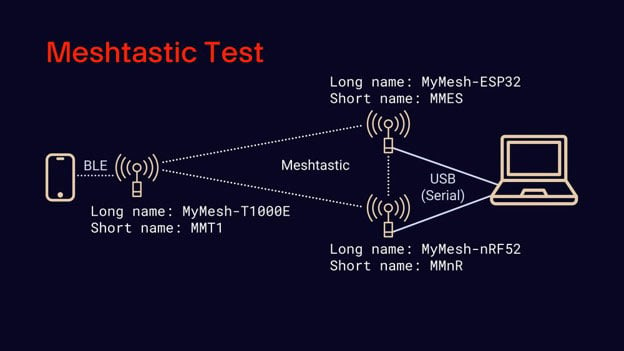
Connect to the T1000E using the Meshtastic app. Connect to the XIAO boards from client.meshtastic.org.
With all three nodes configured, a message on the primary channel goes out to everyone on the mesh (at least everyone with a node in the max hop range and set to Long Fast).


If you get a "no channel" error on a direct message, the two nodes have not yet exchanged public keys. Wait a few minutes and try again; in my case, it took roughly 30 minutes for one node's updated name to reach another sitting on the same desk.
Private channels use a pre-shared AES key rather than public-key exchange. Add a secondary channel with the same name and key on every node, and they can talk immediately.
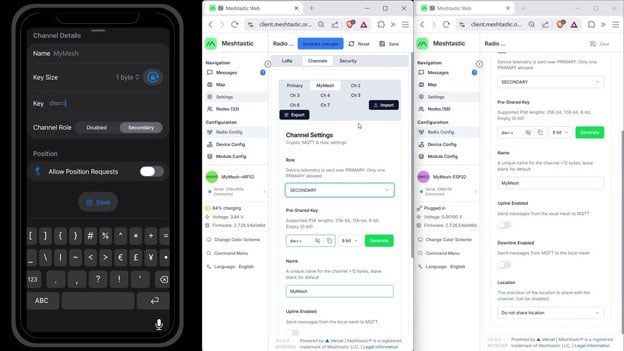
I used a short one-byte key for the demo (base64: “dw==”), which is not secure. I recommend generating a longer one for anything real. Intermediate nodes will forward your encrypted traffic, but cannot read it without the key. Once configured with the AES key, you can then send messages to everyone on that channel.

Note that nodes operate independently of the app. As long as a configured node has power, it listens, rebroadcasts, periodically broadcasts its own info, maintains an internal list of nodes it has heard, and buffers messages (dropping telemetry data first if the buffer fills up). Everything syncs to the client the next time you connect.
A few resources for connecting with the wider community:
Hopefully, this helps you get started with Meshtastic: how to flash firmware, configure a node, send and receive communications, and join private channels. Everything from here builds on this foundation. In the next episode, we’ll set up a dedicated repeater.