Settings
 Fast Delivery
 Payment Types


 Marketplace Product

Running ROS on Docker: Complete Guide (Part 3)
This is the third part of my Docker series. If you have been following along, you already know why Docker exists and how to build a basic container. This part is where it all becomes real for robotics: we apply everything from the previous two parts directly to ROS2, run actual nodes inside a container, and build a setup you can take into your own projects.
Quick Recap: Where We Left Off
Part 1 of this series was about the core problem Docker solves. That classic situation where your code runs perfectly on your machine, you hand it to a teammate, and suddenly nothing works. Different OS, different library versions, different everything. Docker fixes this by wrapping your code and its entire environment together, so the environment travels with the code.
Part 2 got practical. We wrote our first Dockerfile, learned how image layers work, built a container, and went through the best practices that keep images small and maintainable.
If you skipped those two, I would go back and read them first. This part builds directly on them and assumes you have Docker installed and know the basics of how a Dockerfile is structured.
With that out of the way, let's get into ROS.
Why ROS Specifically Needs Docker
ROS2 has a compatibility rule that trips up almost every robotics student at some point. Each distribution of ROS2 is built for one specific version of Ubuntu, and only that version. ROS2 Humble runs on Ubuntu 22.04. ROS2 Jazzy runs on Ubuntu 24.04. There is no official way to run Jazzy on a 22.04 system or Humble on 24.04.
This sounds like a minor inconvenience until you actually run into it. You find an open-source robot driver, a simulation package, or someone else's project that runs on a different ROS version than yours. Suddenly, you have two options: upgrade your entire operating system and risk breaking your existing setup, or find a way to run that environment in parallel.
I went through exactly this while working on a project with the SO-101 ARM, an open-source robotic arm from the Hugging Face LeRobot ecosystem. The arm's official ROS2 bridge was built for ROS2 Jazzy on Ubuntu 24.04. My machine was on Ubuntu 22.04 with ROS2 Humble. I was genuinely about to upgrade my OS and lose every project configuration I had. Docker made that completely unnecessary. I ran Jazzy in a container, connected it to my Humble setup on the host, and the two worked together without either one touching the other.

Docker does not just help with version mismatches. It also makes your ROS projects reproducible and shareable. When your container includes everything the project needs, anyone on your team can run it with a single command, on any machine, without a setup guide.
The Official ROS Docker Images
The Open Source Robotics Foundation maintains official Docker images for every supported ROS and ROS2 distribution. These are hosted on Docker Hub at hub.docker.com/r/osrf/ros and are the right starting point for any ROS container.
Each distribution comes in a few sizes. For ROS2 Jazzy:
osrf/ros:jazzy-ros-base is the minimal option. It includes ROS2 core libraries and build tools, but no graphical software. Best for running nodes headlessly or building workspaces.
osrf/ros:jazzy-desktop adds visualization tools like RViz2 and rqt, plus the demo packages we will use in this guide. This is the image we will start with for the hands-on exercises.
The same naming pattern applies to any distribution. Replace jazzy with humble, iron, or rolling to get that version instead.
Exercise 1: Pull the Image and Explore the Container
Let's start by pulling the ROS2 Jazzy image. Open a terminal on your machine and run:
docker pull osrf/ros:jazzy-desktop

This downloads the image layers from Docker Hub. The first pull takes a few minutes. You will see progress bars for each layer. When it finishes, verify the image is on your machine:
docker images

You should see osrf/ros listed with the tag jazzy-desktop. Now start an interactive container from that image:
docker run -it --rm osrf/ros:jazzy-desktop bash
Your terminal prompt will change. You are now inside a container running Ubuntu 24.04 with ROS2 Jazzy. Confirm it by checking the ROS distro:
You should see the output: jazzy. Now source the ROS2 environment and list the available topics (there will be none yet, but the command confirms ROS2 is working):
source /opt/ros/jazzy/setup.bash
ros2 topic list

Type exit to leave the container. Because we used --rm, Docker removes it automatically.
Exercise 2: Running ROS2 Nodes Inside Docker
Now let's run actual ROS2 nodes. We will use the classic talker and listener demo that comes with the osrf/ros:jazzy-desktop image. This is one of the simplest ways to verify that ROS2 communication is working inside a container.
Open two separate terminal windows on your machine. In the first one, run the talker node:
docker run -it --rm \
  --net=host \
  --ipc=host \
  -e ROS_DOMAIN_ID=0 \
  -e ROS_LOCALHOST_ONLY=0 \
  osrf/ros:jazzy-desktop \
  bash -c "source /opt/ros/jazzy/setup.bash && ros2 run demo_nodes_py talker"
You should see the talker publishing messages, printing something like:
[INFO] [talker]: Publishing: "Hello World: 1"
[INFO] [talker]: Publishing: "Hello World: 2"
[INFO] [talker]: Publishing: "Hello World: 3"

In the second terminal window, run the listener node:
docker run -it --rm \
  --net=host \
  --ipc=host \
  -e ROS_DOMAIN_ID=0 \
  -e ROS_LOCALHOST_ONLY=0 \
  osrf/ros:jazzy-desktop \
  bash -c "source /opt/ros/jazzy/setup.bash && ros2 run demo_nodes_py listener"
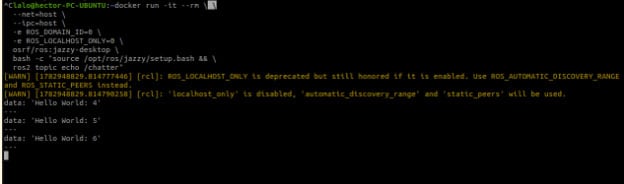
The listener should immediately start receiving the talker's messages:
[INFO] [listener]: I heard: "Hello World: 4"
[INFO] [listener]: I heard: "Hello World: 5"
[INFO] [listener]: I heard: "Hello World: 6"

Notice the --net=host flag in both commands. This is what makes the two containers able to see each other. Without it, each container lives in its own isolated network and cannot discover the other's ROS nodes.
What is --net=host and Why Does It Matter for ROS2?
ROS2 uses a communication layer called DDS (Data Distribution Service) to allow nodes to automatically discover each other and exchange messages. DDS relies on the network to detect available nodes and communicate through UDP-based discovery mechanisms.
By default, Docker isolates each container inside its own private network. This isolation prevents DDS discovery traffic from reaching other containers or the host machine, which means ROS2 nodes running in separate containers may not be able to find each other.
The --net=host flag removes this network isolation. The container directly shares the host machine's network interface, allowing DDS discovery and communication to work as if ROS2 nodes were running natively on the machine.
For ROS2 development on Linux, using --net=host is the simplest and most reliable way to enable communication between containers.
In addition, we used --ipc=host to share the host's IPC namespace, improving compatibility with some ROS2 communication mechanisms. ROS_DOMAIN_ID=0 ensures all ROS2 nodes run in the same DDS domain and can discover each other. ROS_LOCALHOST_ONLY=0 allows communication beyond the local container, enabling discovery across the network.
Exercise 3: Verifying Cross-Container Topic Visibility
Let's take it one step further. With the talker still running in the first terminal, open a third terminal and check what topics are available:
docker run -it --rm \
  --net=host \
  --ipc=host \
  -e ROS_DOMAIN_ID=0 \
  osrf/ros:jazzy-desktop \
  bash -c "source /opt/ros/jazzy/setup.bash && ros2 topic list"
You should see the talker's topic listed:
/chatter
/rosout
/parameter_events

Now echo the messages on that topic to confirm the data is flowing:
docker run -it --rm \
  --net=host \
  --ipc=host \
  -e ROS_DOMAIN_ID=0 \
  osrf/ros:jazzy-desktop \
  bash -c "source /opt/ros/jazzy/setup.bash && ros2 topic echo /chatter"
You should see the messages appearing in real time, pulled from the talker running in the other container. This confirms that multiple containers can communicate seamlessly when using host networking.
Writing Your Own Dockerfile for ROS2
Running containers directly with docker run works for quick tests. For a real project, you want a Dockerfile so your environment is reproducible and you can add your own code and dependencies on top of the base image.
Create a new folder for this exercise, and inside it create a file named Dockerfile (no extension) with the following content:

Build the image from inside that folder:
docker build -t my_ros2_project

You will see Docker executing each step: pulling the base image, running apt-get, updating rosdep, creating the workspace. When it finishes, run a container from your new image:
docker run -it --rm --net=host my_ros2_project bash

Inside the container, ROS2 is already sourced because we added it to .bashrc. Confirm it:
echo $ROS_DISTRO
Persisting Your Work with Volumes
One thing that trips people up early on: anything you create inside a container disappears when the container stops. If you write code inside the container without saving it to a mounted folder, it is gone when you exit.
The solution is to mount a folder from your host machine into the container using the -v flag. Files in that folder exist on your host and are shared with the container simultaneously. Edits on either side are immediately visible on the other.
Create a folder on your host for the ROS workspace:
mkdir -p ~/my_ros2_ws/srcThen run your container with that folder mounted:
docker run -it --rm \
  --net=host \
  -v ~/my_ros2_ws:/ros2_ws \
  my_ros2_project bash
Now anything you put in /ros2_ws inside the container shows up in ~/my_ros2_ws on your host, and vice versa. Your source code is safe on the host even after the container closes.

Building a Real ROS2 Package Inside the Container
With the volume mounted, let's clone and build a real ROS2 package so you can see the full workflow in action. We will use the official ROS2 examples repository, which contains minimal publisher and subscriber nodes that work out of the box.
Inside the container, navigate to the src folder and clone the examples:
cd /ros2_ws/src
git clone https://github.com/ros2/examples.git -b jazzy --depth 1

Now go back to the workspace root, install dependencies with rosdep, and build the minimal publisher package:
cd /ros2_ws
rosdep install --from-paths src/examples/rclpy --ignore-src -r -y
source /opt/ros/jazzy/setup.bash
colcon build --packages-select examples_rclpy_minimal_publisher examples_rclpy_minimal_subscriber
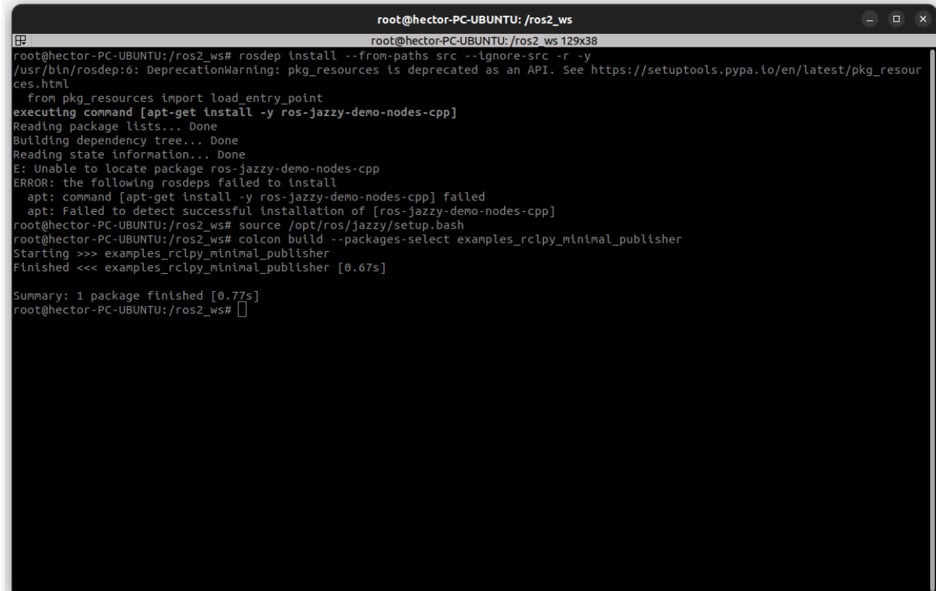
You will see colcon output as the package compiles. When it finishes, source the workspace and run the publisher:
source install/setup.bash
ros2 run examples_rclpy_minimal_publisher publisher_member_function
You should see it publishing messages every half second.

Exercise 4: Managing Everything with Docker Compose
Once your project has more than one container, typing long docker run commands gets old fast. Docker Compose lets you describe your entire setup in a single YAML file and bring it all up with one command.
In your project folder, create a file named docker-compose.yaml:
version: "3.9"

services:
  talker:
    image: osrf/ros:jazzy-desktop
    network_mode: host
    ipc: host
    environment:
      - ROS_DOMAIN_ID=0
    command: bash -c "source /opt/ros/jazzy/setup.bash && ros2 run demo_nodes_py talker"

  listener:
    image: osrf/ros:jazzy-desktop
    network_mode: host
    ipc: host
    environment:
      - ROS_DOMAIN_ID=0
    command: bash -c "source /opt/ros/jazzy/setup.bash && ros2 run demo_nodes_py listener"
To start both services at once:
docker compose up
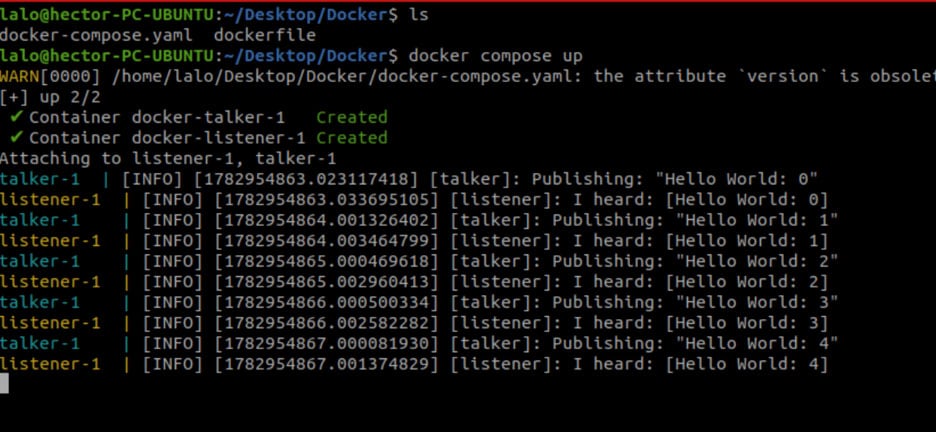
Docker Compose will pull the image if needed, start both containers, and stream their output together in the terminal. You will see the talker and listener messages interleaved in a single view.
To stop everything at once, press Ctrl+C. To start in the background (detached mode):
docker compose up -d
And to stop and remove the containers:
docker compose down
The power of Compose is that your entire multi-container setup lives in one file that is version-controlled alongside your code. A new team member can clone the repo and be up and running with a single command.
Common Issues and How to Fix Them
The container starts but ros2 commands are not found.
This means the ROS2 environment has not been sourced. Either add source /opt/ros/jazzy/setup.bash to your container's .bashrc (as we did in the Dockerfile), or source it manually each time you open a shell in the container.
Nodes cannot see each other between containers or the host
Almost always means --net=host is missing. Check that all containers involved are using host networking. Also verify that the ROS_DOMAIN_ID environment variable is the same on all sides.
rosdep install fails saying it cannot find a package
Run rosdep update first to refresh the package index, then try again. If a specific package is still not found, it may not be in the rosdep database. Search for it manually with apt-cache search ros-jazzy- followed by part of the package name.
colcon build fails with a missing library error
The error message will name the missing library. Search for which apt package provides it using apt-cache search, install it with apt-get install, and add that install line to your Dockerfile so it is included in the image from now on.
Files built inside the container are owned by root on the host
When you mount a folder and build inside the container, the generated files are owned by root because Docker runs as root by default. On the host, you cannot edit or delete them without sudo. A quick fix is to run sudo chown -R $USER ~/my_ros2_ws on the host to take back ownership.
Wrapping Up
Docker and ROS2 solve a real problem together. The ROS version-to-Ubuntu pairing is not going away, and as the ecosystem evolves and new distributions come out, the need to run multiple ROS environments on the same machine is only going to grow.
What we covered in this part goes from the basics of pulling an official ROS image all the way to building a real package inside a container with a persistent workspace. The exercises are designed to work exactly as written, so take the screenshots as you go and verify each step before moving on.
From here, the next logical step is to take one of your own ROS2 packages, write a Dockerfile for it, build the image, and run it in a container. Apply the volume mount so you can edit code on the host while building inside the container. Once that workflow is comfortable, Docker stops feeling like an extra layer of complexity and starts feeling like the way things should have always worked.
Hector Eduardo Tovar Mendoza, RoBorregos, Tecnologico de Monterrey