Settings
 Fast Delivery
 Payment Types


 Marketplace Product

Arduino Handheld Fan With Capacitive Touch Switch
License: GNU Lesser General Public License Microcontrollers Power Supplies Touch Arduino ESP32
In this tutorial, we will learn how to turn a handheld battery fan ON and OFF using a capacitive touch sensor, relay module, and Visuino.
Watch a demonstration video.
What You Will Need
Arduino UNO (or any other Arduino)
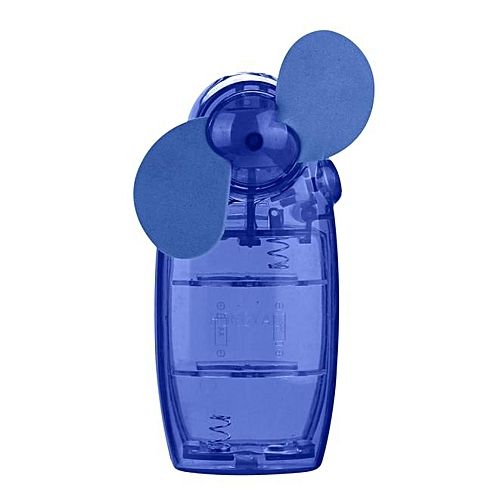
Battery fan (or some other battery-powered device)
Visuino program: Download Visuino
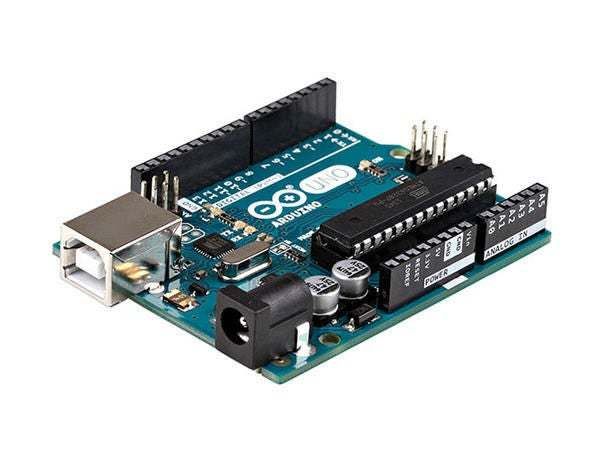
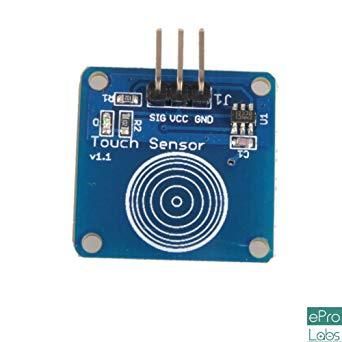
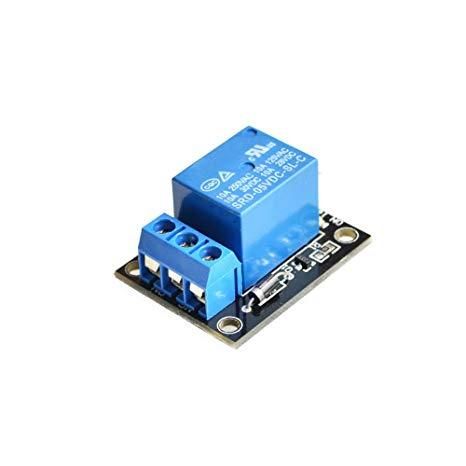
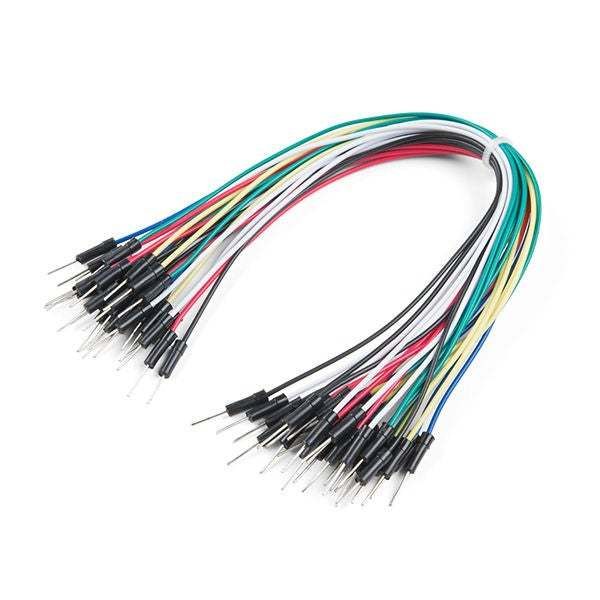
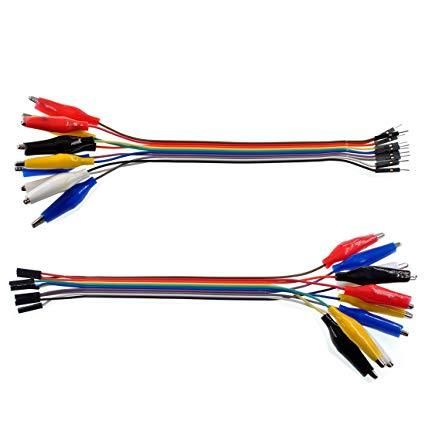

The Circuit
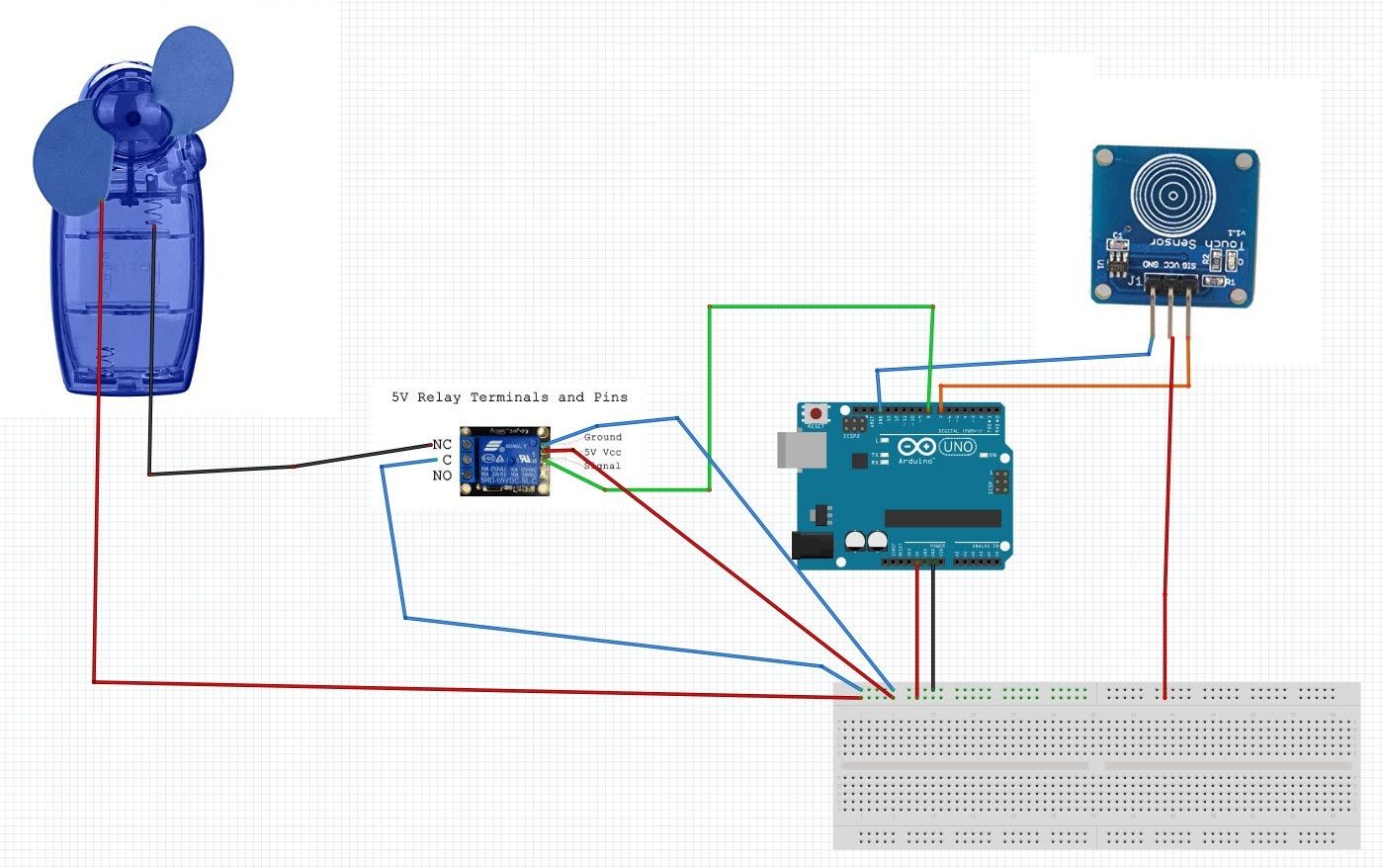
Connect the capacitive touch sensor "Signal" pin to Arduino Digital pin[7]
Connect the capacitive touch sensor "VCC" pin to pin [5V]
Connect the capacitive touch sensor "GND" pin to pin [GND]
Connect the relay "Signal" pin to Arduino digital pin [8]
Connect the relay "VCC" pin to pin [5V]
Connect the relay "GND" pin to pin [GND]
Connect the handheld "Positive" pin to pin [5V].
Connect the handheld "Negative" pin to Relay pin [NC]
Connect Relay pin [C] to pin [GND]
Start Visuino, and Select the Arduino UNO Board Type
To start programming the Arduino, you will need to have the Arduino IDE installed from here: https://www.arduino.cc/.
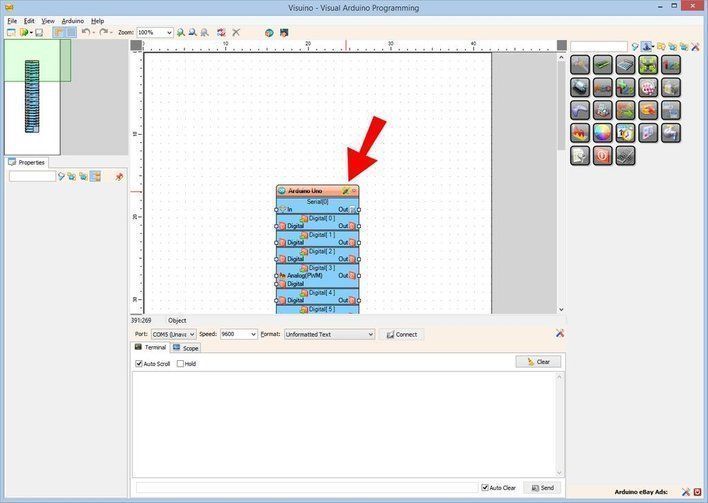
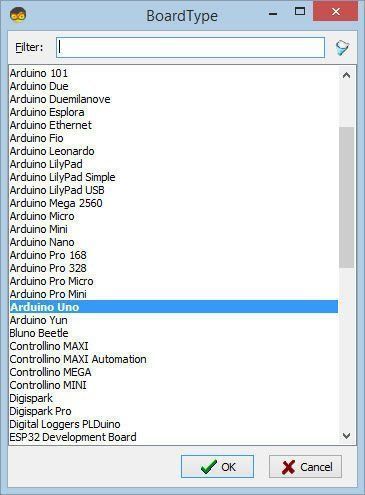
Please be aware that there are some critical bugs in Arduino IDE 1.6.6. Make sure that you install 1.6.7 or higher; otherwise, this will not work! If you have not done so, follow the steps to set up the Arduino IDE to program Arduino UNO! The Visuino: https://www.visuino.eu also needs to be installed. Start Visuino as shown in the first picture. Click on the "Tools" button on the Arduino component (Picture 1) in Visuino. When the dialog appears, select "Arduino UNO" as shown in Picture 2
In Visuino, Add Components
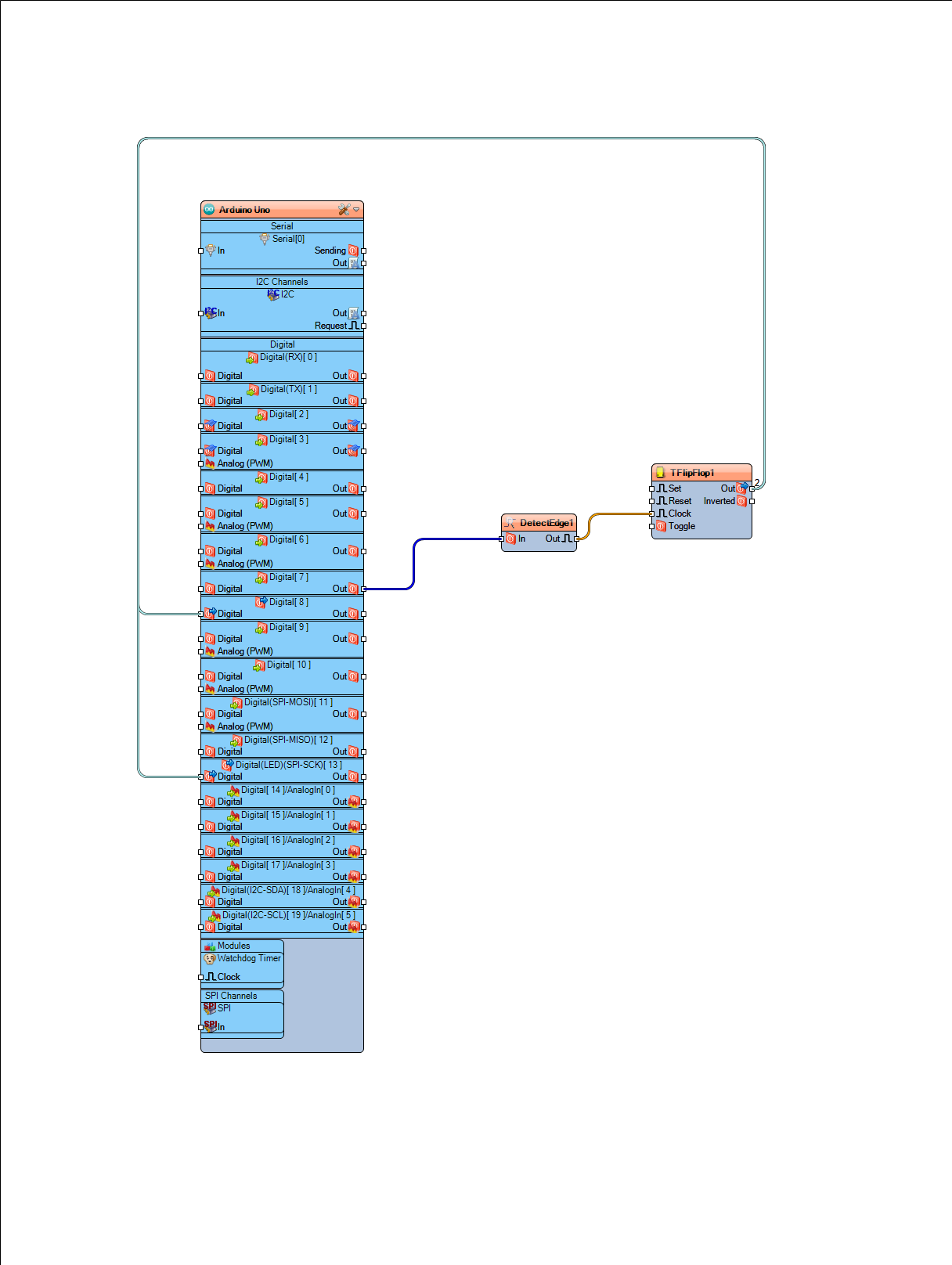
Add "Detect Edge" component and set under the properties window "Rising" to "True"
Add "(T) Flip-Flop" component
Connect Arduino Digital Out pin [7] to "DetectEdge1" component pin[In]
Connect "DetectEdge1" component pin[Out] to "TFlipFlop1" component pin[Clock]
Connect "TFlipFlop1" component pin[Out] to Arduino Digital IN pin[8]
Generate, Compile, and Upload the Arduino Code
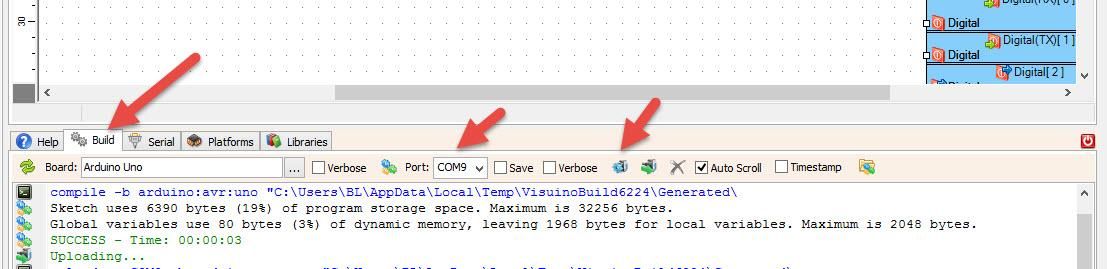
In Visuino, at the bottom, click on the "Build" tab, make sure the correct port is selected, then click on the "Compile/Build and Upload" button.
Play
If you power the Arduino UNO module, the fan should spin if you touch the "capacitive touch" sensor or turn the fan off.
Congratulations! You have completed your project with Visuino. Also attached is the Visuino project that I created for this. You can download and open it in Visuino: https://www.visuino.eu