Settings
 Fast Delivery
 Payment Types


 Marketplace Product

Seeedstudio Wio Terminal Countdown Timer
License: GNU Lesser General Public License Displays Microcontrollers Arduino
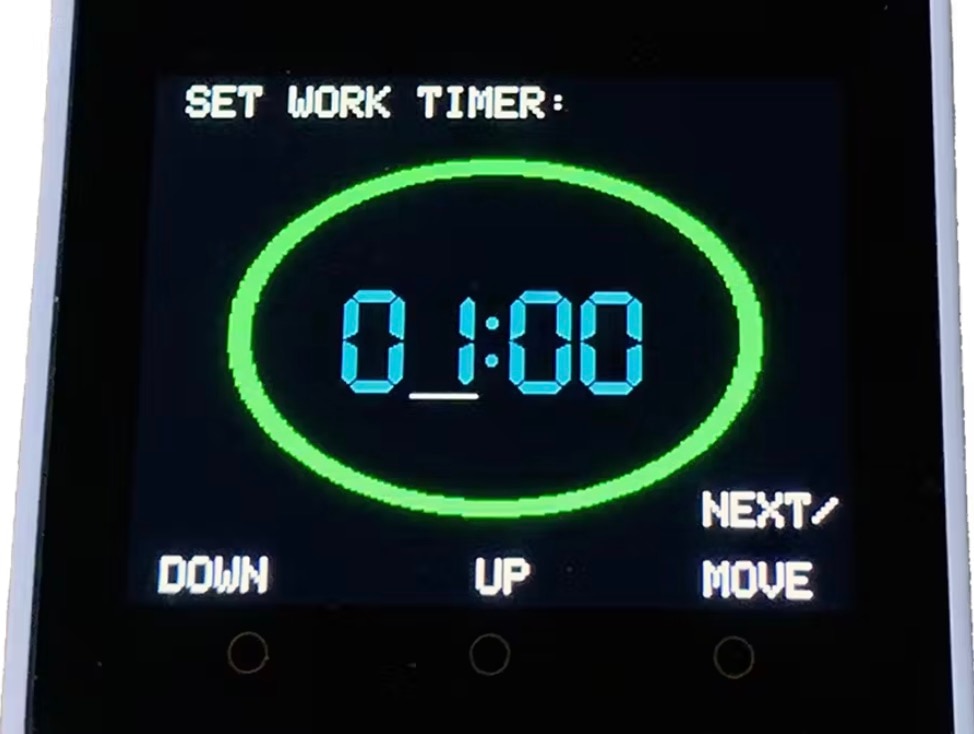
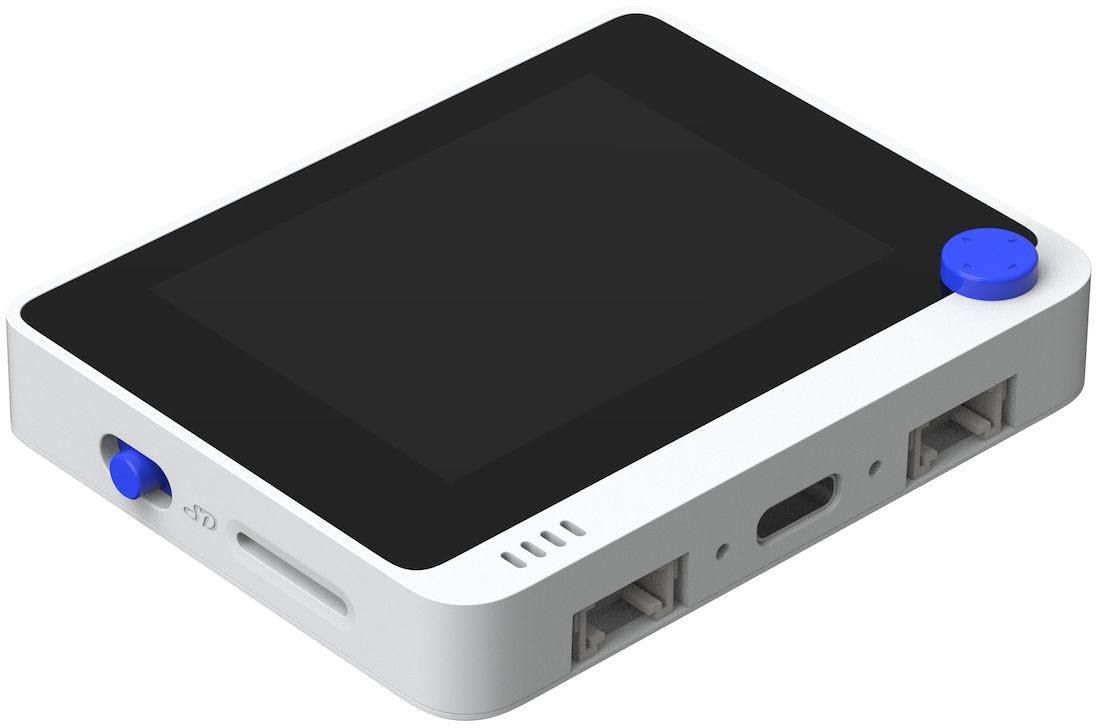
In this tutorial, we are going to build a simple countdown timer using a Seeedstudio Wio Terminal.
By pressing the "A" button, you can set the time.
By pressing the blue button, the timer will start to count down, and by pressing it again, the timer will pause.
By pressing the "B" button, you can reset the time.
Watch the video!
What You Will Need
Visuino program: Download Visuino
Start Visuino, and Select the Arduino Wio Terminal Board Type
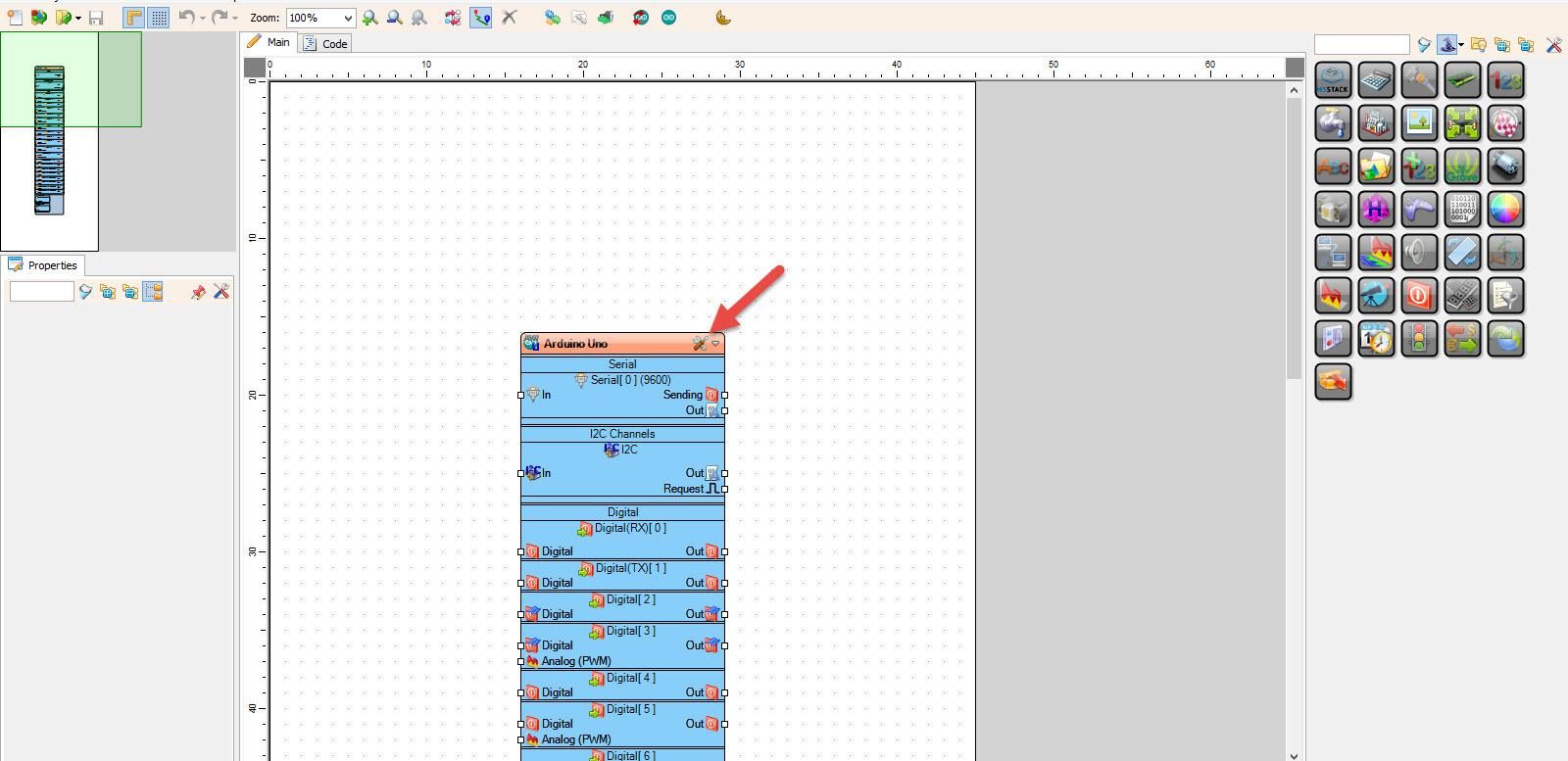
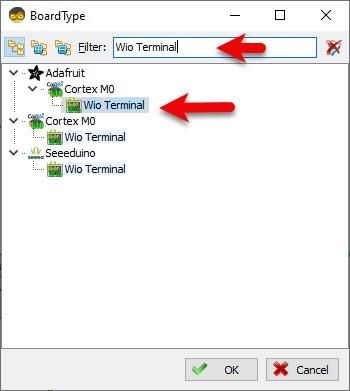
Start Visuino as shown in the first picture. Click on the "Tools" button on the Arduino component (Picture 1) in Visuino. When the dialog appears, select "Wio Terminal" as shown in Picture 2
In Visuino, Add Components
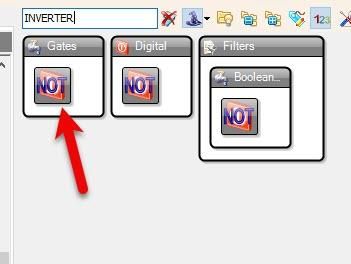
Add 2X "INVERTER" component
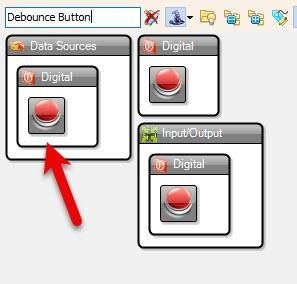
Add 3X "Debounce Button" component
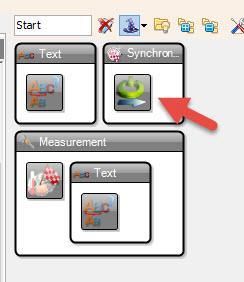
Add "Start" component
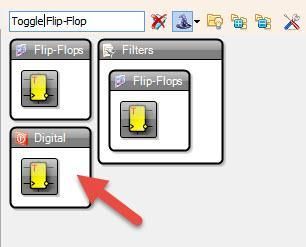
Add "Toggle(T) Flip-Flop" component
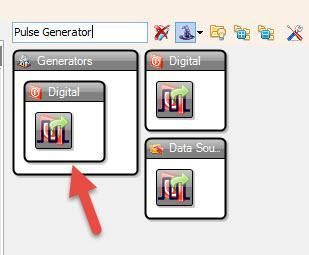
Add "Pulse Generator" component
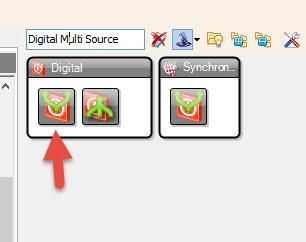
Add "Digital Multi Source" component
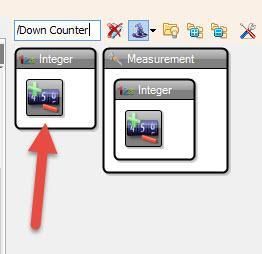
Add "Up/Down Counter" component
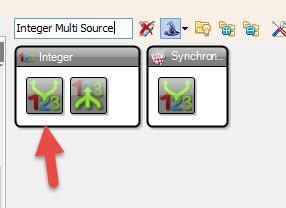
Add 2X "Integer Multi Source" component
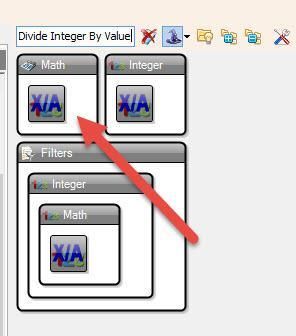
Add "Divide Integer By Value" component
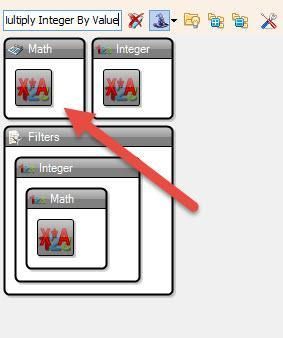
Add "Multiply Integer By Value" component
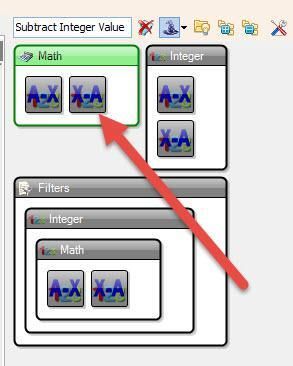
Add "Subtract Integer Value" component
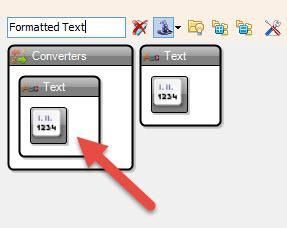
Add "Formatted Text" component
Add "Text Multi Source" component
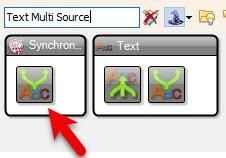
In Visuino Set Components
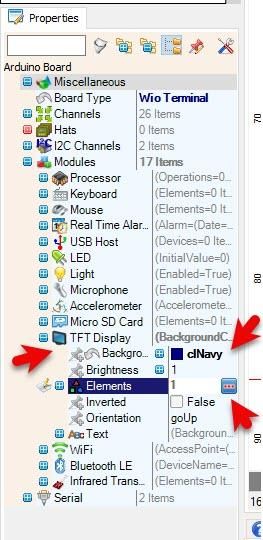
Select "Wio Terminal" board and in the properties window expand "Modules">"TFT Display">Background Color set it to clNavy
Select "Wio Terminal" board and in the properties window expand "Modules">"TFT Display">"Elements" and click on the 3 dots button
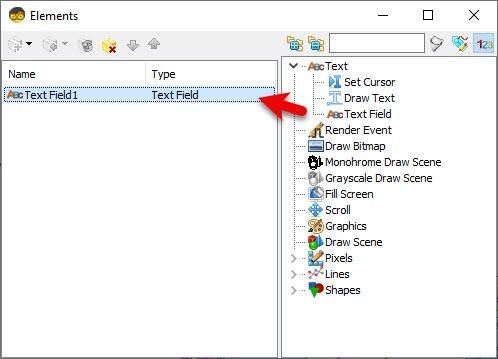
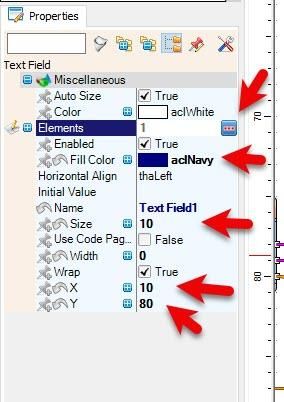
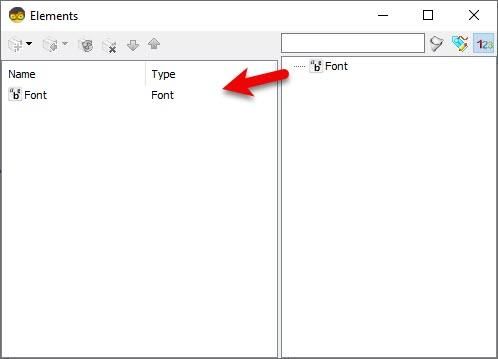
In the "Elements" window, drag "Text Field" to the left side, and in the properties window, set "Color" to aclNavy and "X" to 10, "Y" to 80, "Size" to 10, select "Elements" and click on the 3 dots button. In the "Elements" window, drag "Font" to the left side and in the properties window set "Font" to Adafruit\Org_01
Close both "Elements" windows
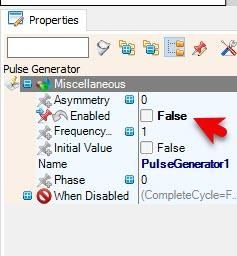
Select "PulseGenerator1" and in the properties window, set "Enabled" to False
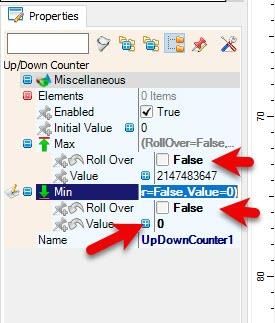
Select "UpDownCounter1" and in the properties window set "Enabled" to "Max">"Roll Over" to False, and "Min">"Roll Over" to False, and "Max">"Value" to 0
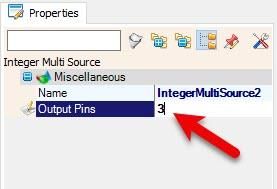
Select "IntegerMultiSource2" and in the properties window set "Output Pins" to 3
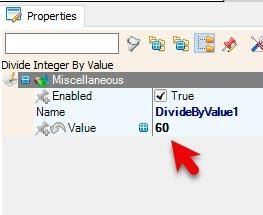
Select "DivideByValue1" and in the properties window set "Value" to 60
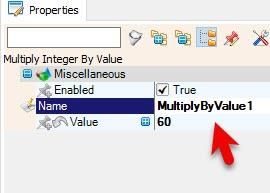
Select "MultiplyByValue1" and in the properties window set "Value" to 60
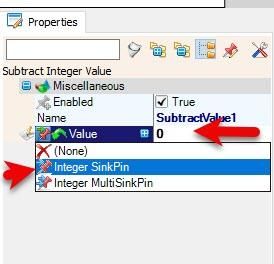
Select "SubtractValue1" and in the properties window select "Value" and set it to 0, and click on the pin icon and select "Integer SinkPin"
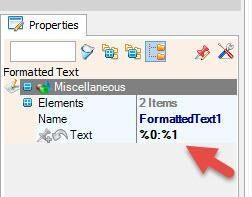
Select "FormattedText1" and in the properties window set "Text" to %0:%1
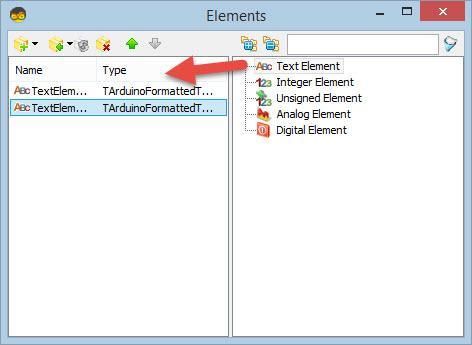
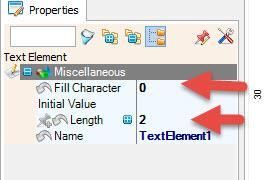
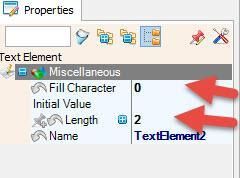
Double click on the "FormattedText1" and in the "Elements" window, drag 2X "Text Element" to the left side and for both, set in the properties window "Fill Character" to 0 and "Length" to 2
Close the "Elements" window
In Visuino Connect Components
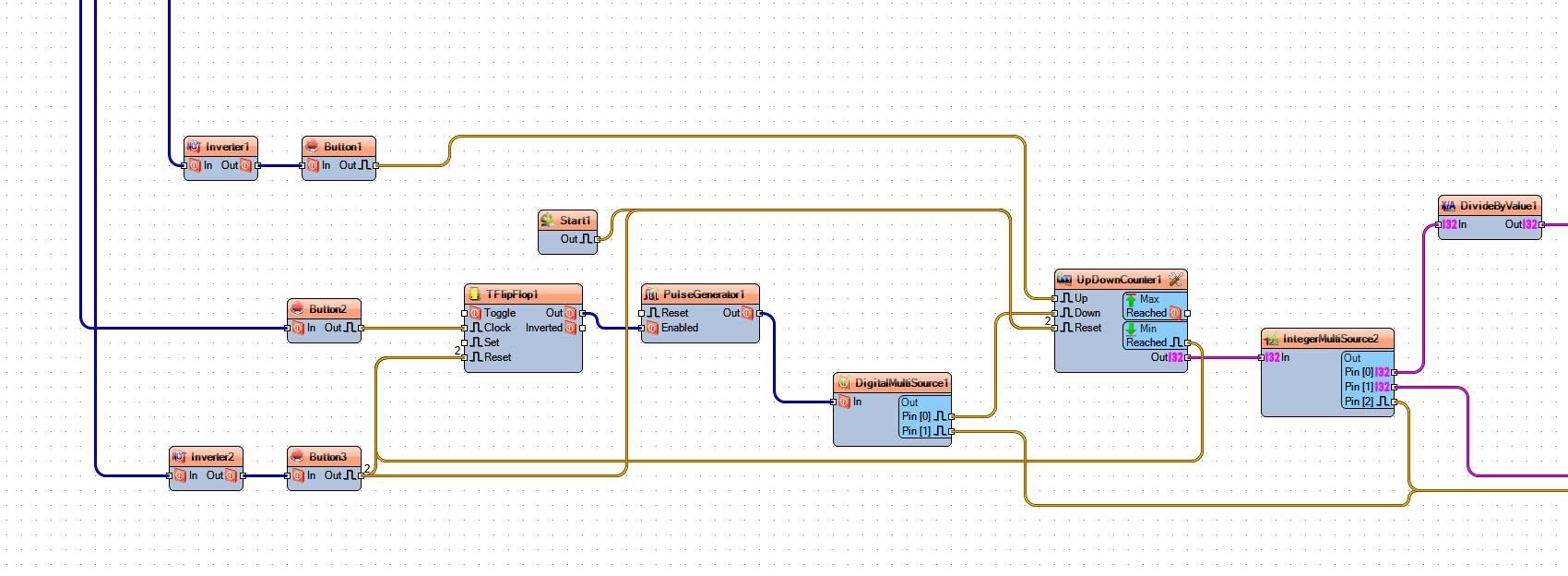
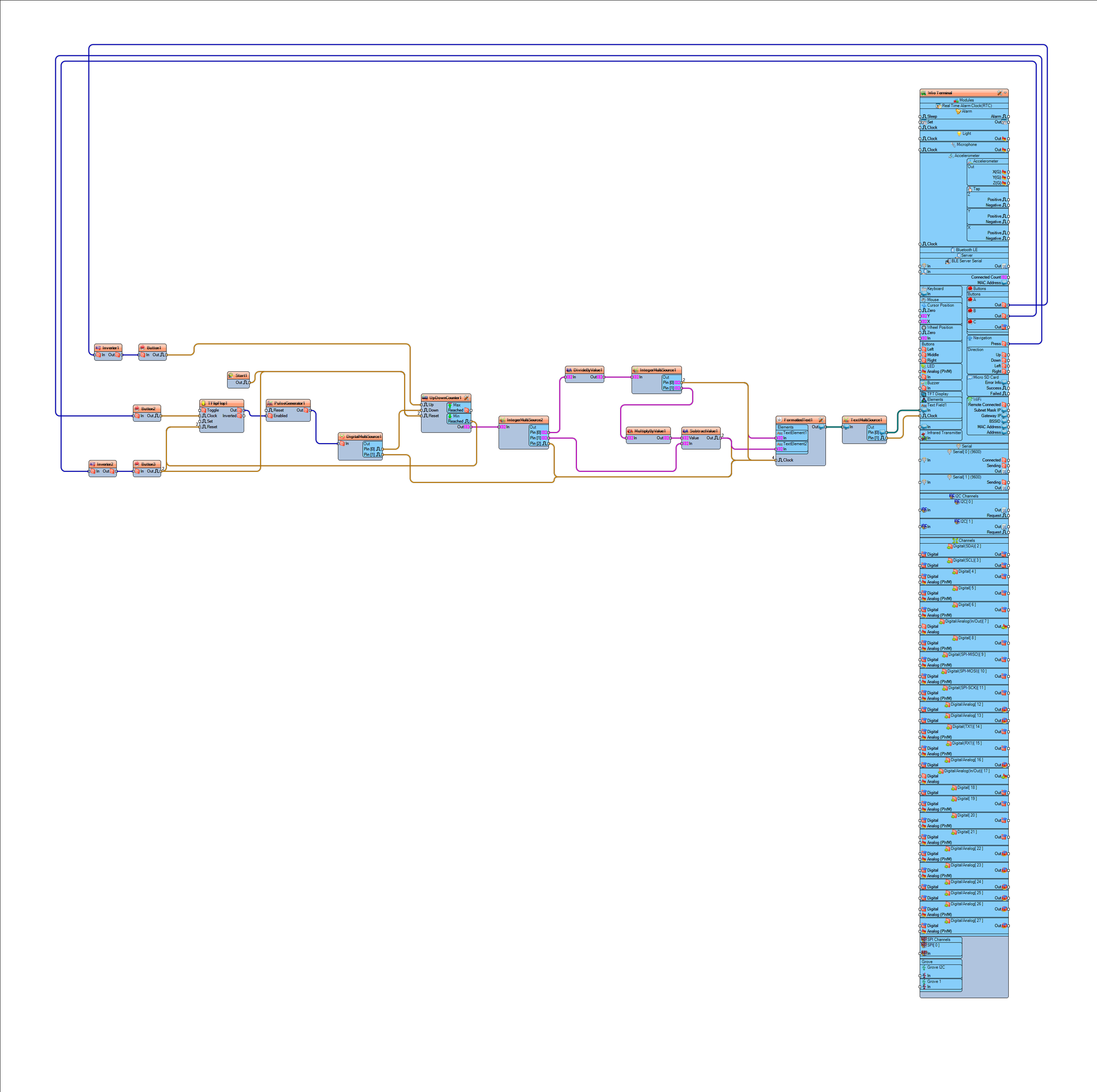
Connect Wio Terminal > Navigation pin [Press] to "Button2" pin [In]
Connect Wio Terminal > Buttons A pin [Out] to "Inverter1" pin [In]
Connect Wio Terminal > Buttons B pin [Out] to "Inverter2" pin [In]
Connect "Inverter1" pin [Out] to "Button1" pin [In]
Connect "Inverter2" pin [Out] to "Button3" pin [In]
Connect "Button1" pin [Out] to "UpDownCounter1" pin [Up]
Connect "Start1" pin [Out] to "UpDownCounter1" pin [Reset]
Connect "Button2" pin [Out] to "TFlipFlop1" pin [Clock]
Connect "Button3" pin [Out] to "TFlipFlop1" pin [Reset]
Connect "Button3" pin [Out] to "UpDownCounter1" pin [Reset]
Connect "TFlipFlop1 pin [Out] to "PulseGenerator1" pin [Enabled]
Connect "PulseGenerator1" pin [Out] to "DigitalMultiSource1" pin [In]
Connect "DigitalMultiSource1" pin [0] to "UpDownCounter1" pin [Down]
Connect "DigitalMultiSource1" pin [1] to "FormattedText1" pin [Clock]
Connect "UpDownCounter1" pin [Out] to "IntegerMultiSource2" pin [In]
Connect "UpDownCounter1" pin [Min Reached] to "TFlipFlop1" pin [Reset]
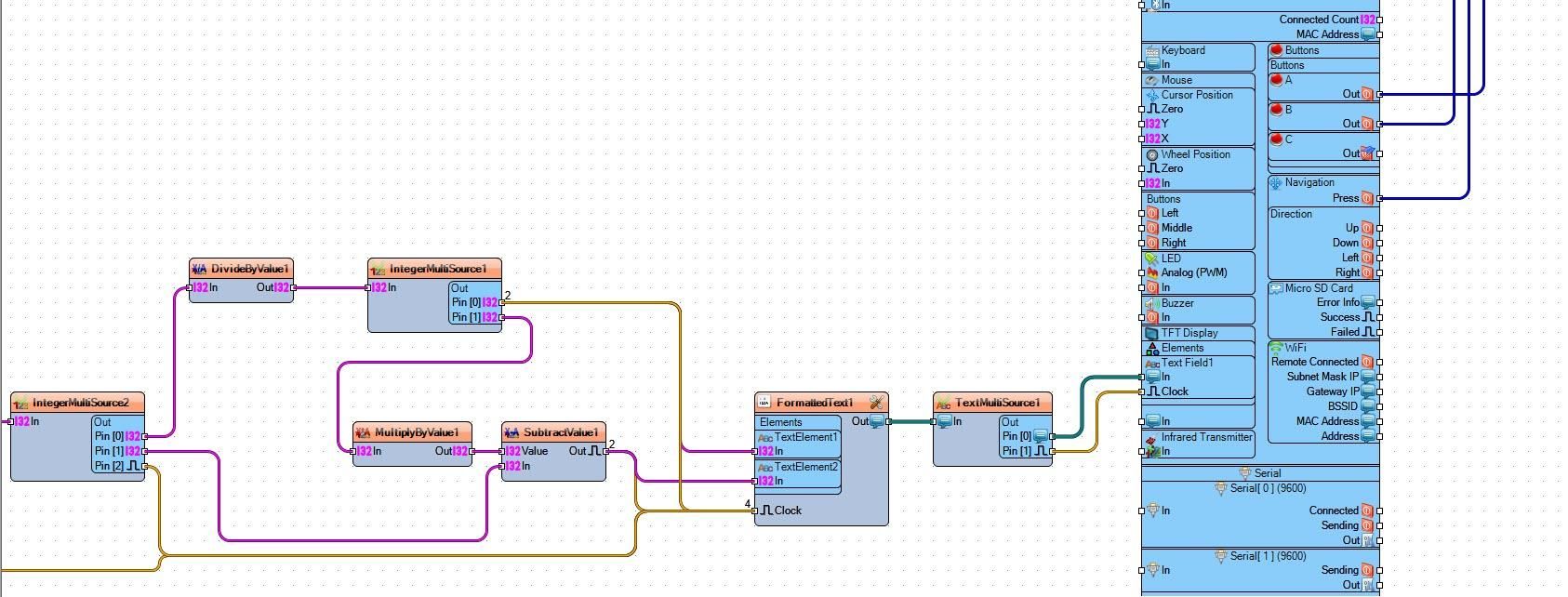
Connect "IntegerMultiSource2" pin [0] "DivideByValue1" pin [In]
Connect "IntegerMultiSource2" pin [1] "SubtractValue1" pin [In]
Connect "IntegerMultiSource2" pin [2] "FormattedText1" pin [Clock]
Connect "DivideByValue1" pin [Out] to "IntegerMultiSource1" pin [In]
Connect "IntegerMultiSource1" pin [0] to "FormattedText1" > "TextElement1" pin [In]
Connect "IntegerMultiSource1" pin [0] to "FormattedText1" > "TextElement1" pin [Clock]
Connect "IntegerMultiSource1" pin [1] to "MultiplyByValue1" pin [In]
Connect "MultiplyByValue1" pin [Out] to "SubtractValue1" pin [Value]
Connect "SubtractValue1" pin [Out] to "FormattedText1" > "TextElement2" pin [In]
Connect "SubtractValue1" pin [Out] to "FormattedText1" pin [Clock]
Connect "FormattedText1" pin [Out] to "TextMultiSource1" pin [In]
Connect "TextMultiSource1" pin [0] to Wio Terminal > "TFT Display" > "Text Field1" pin [In]
Connect "TextMultiSource1" pin [1] to Wio Terminal > "TFT Display" > "Text Field1" pin [Clock]
Generate, Compile, and Upload the Arduino Code
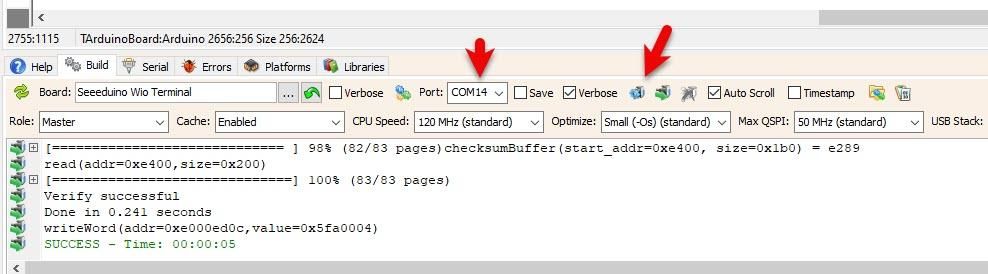
In Visuino, at the bottom, click on the "Build" tab, make sure the correct port is selected, and then click on the "Compile/Build and Upload" button.
Play
If you power the WIO Terminal, the display will show the countdown time. If you press the "A" button, you will be able to set the time. If you press the "B" button, the time will reset. If you press the main blue button, a countdown will start, and if you press it again, the countdown will pause.
Congratulations! You have completed your project with Visuino. Also attached is the Visuino project that I created for this tutorial. You can download it and open it in Visuino: https://www.visuino.eu