Settings
 Fast Delivery
 Payment Types


 Marketplace Product

Volume Indicator Neopixel Ws2812 LED Ring & Arduino
License: GNU Lesser General Public License LED Strips Microcontrollers Arduino ESP32
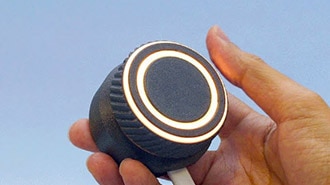
We will learn how to make a Volume Indicator using a NeoPixel WS2812 LED Ring and Arduino.
Watch the Video!
Note: At the bottom, you can find how to reverse the direction of the LED ring.
Learn more about Visuino: What is Visuino
What You Will Need
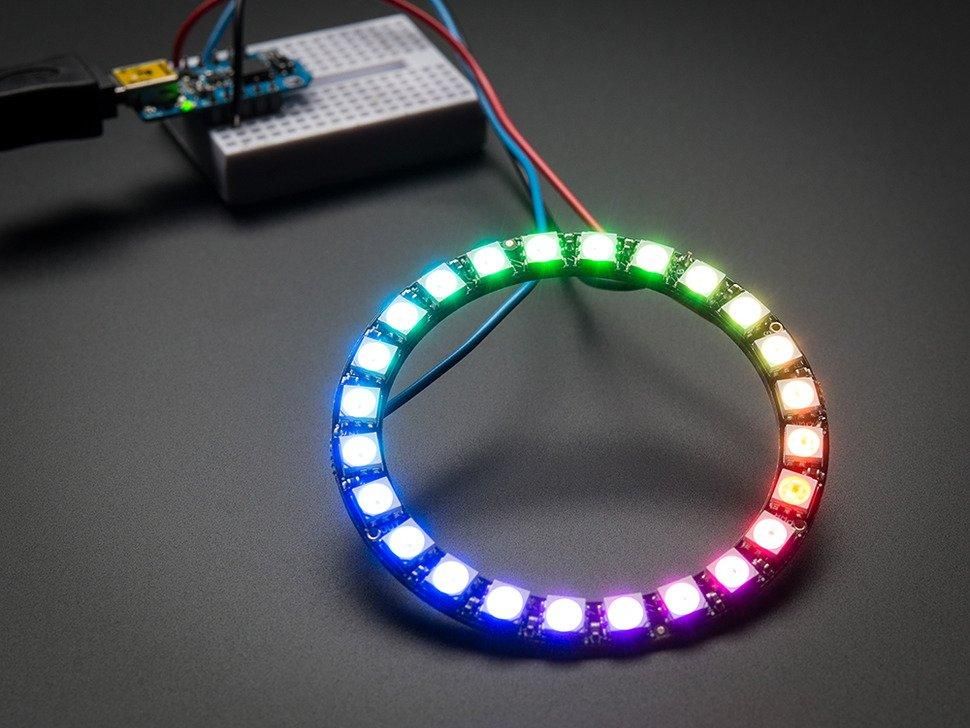
Arduino Uno or any other Arduino board
Visuino software: Download here
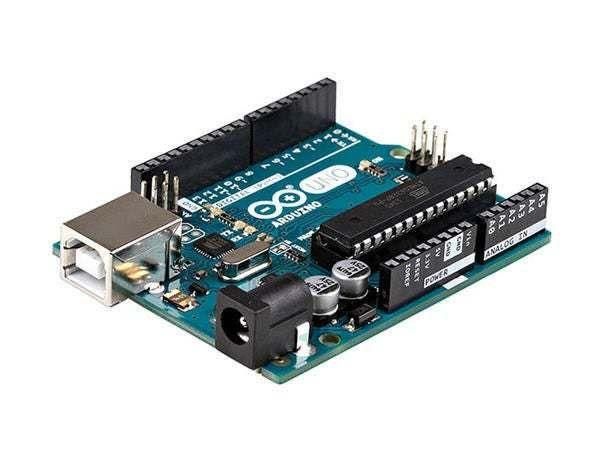

The Circuit
Connect Arduino board pin 5V to LedRing pin VCC
Connect Arduino board pin GND to LedRing pin GND
Connect Arduino board Digital pin 2 to LedRing pin DI
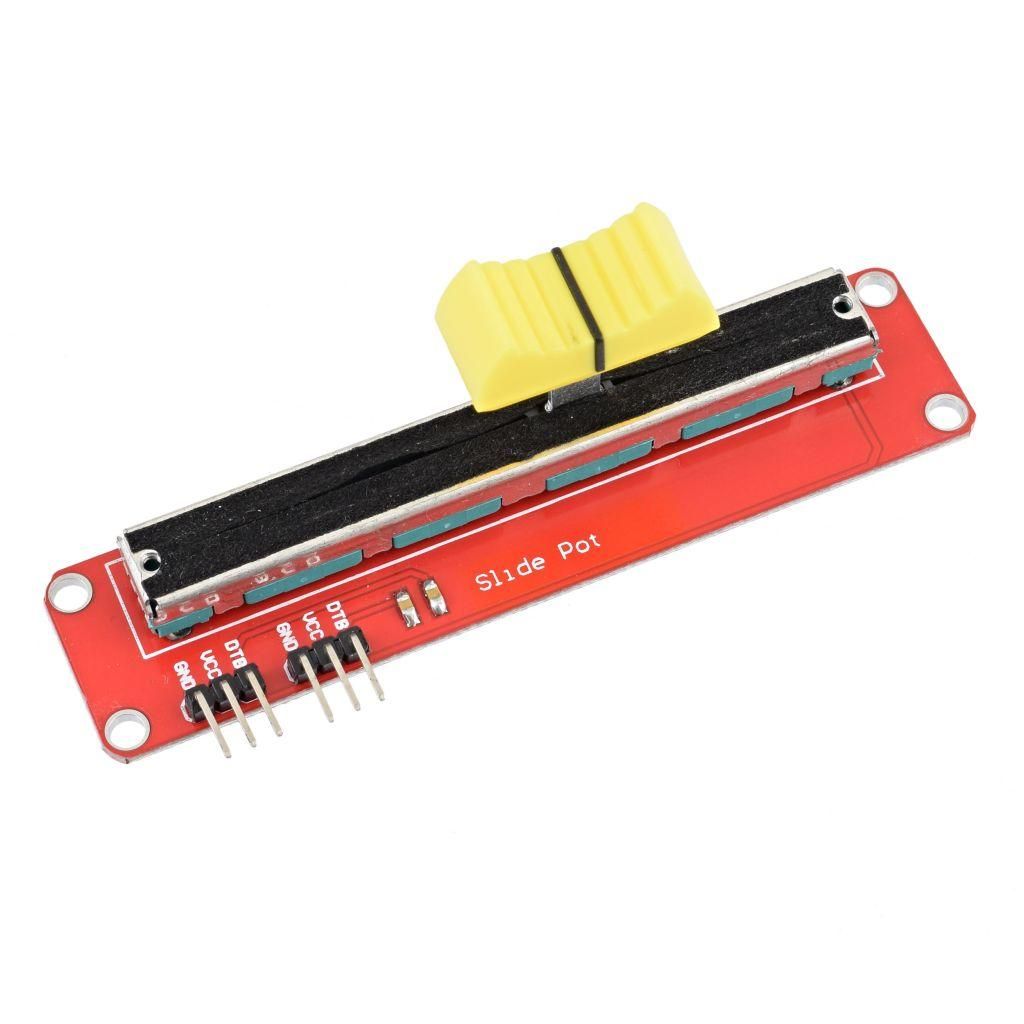
Connect potentiometer pin OTB to Arduino Analog Pin A0
Connect potentiometer pin VCC to Arduino Analog Pin 5V
Connect potentiometer pin GND to Arduino Pin GND

Start Visuino, and Select the Arduino UNO Board Type
The Visuino: https://www.visuino.eu also needs to be installed. Download the free version or register for a Free Trial.
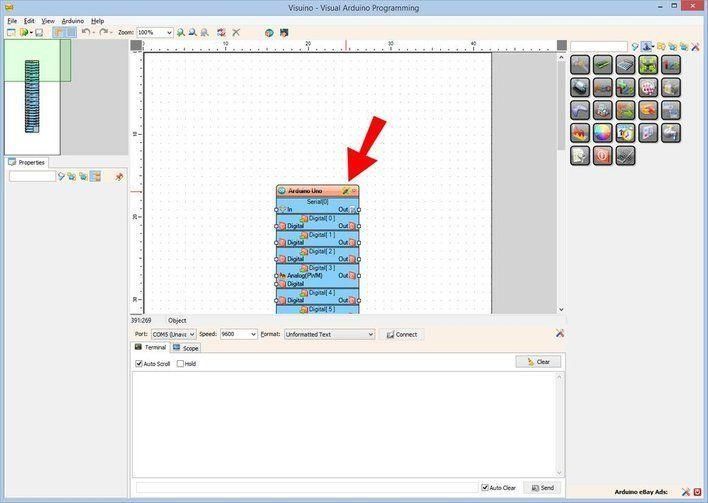
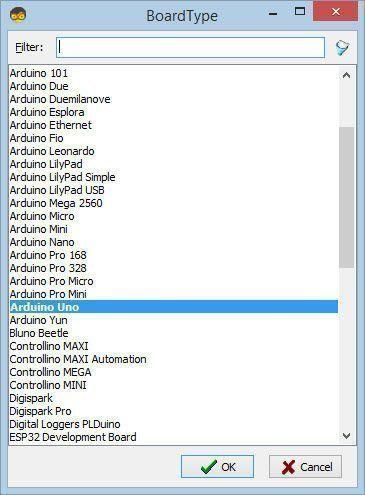
Start Visuino as shown in the first picture. Click on the "Tools" button on the Arduino component (Picture 1) in Visuino. When the dialog appears, select "Arduino UNO" as shown in Picture 2
In Visuino Add Components
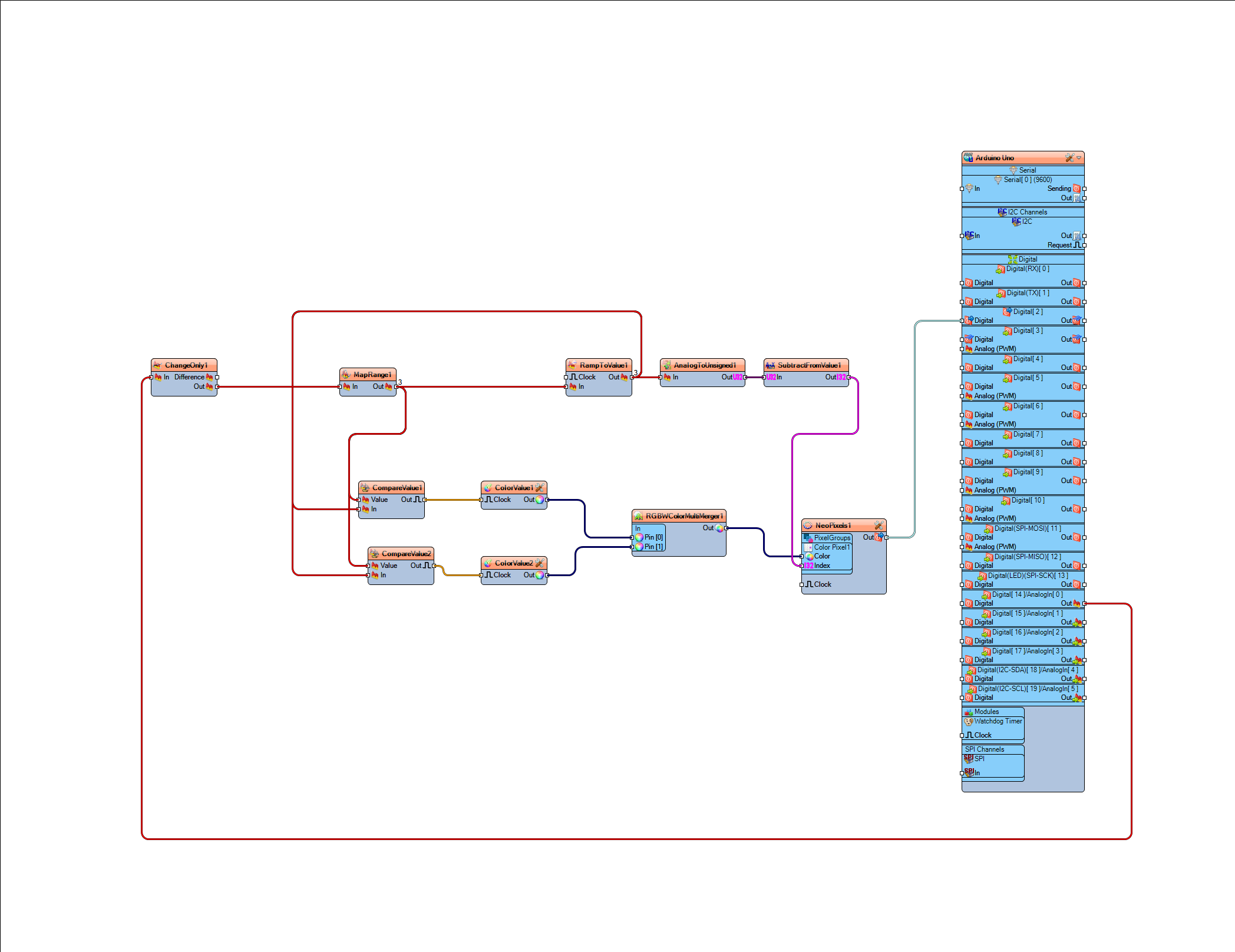
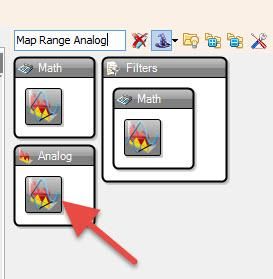
Add "Map Range Analog" component
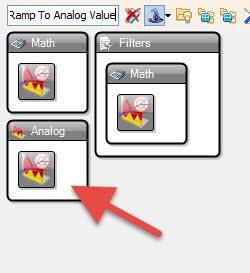
Add "Ramp To Analog Value" component
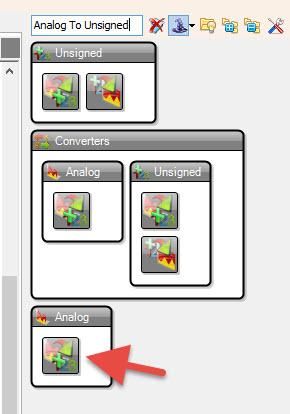
Add "Analog To Unsigned" component
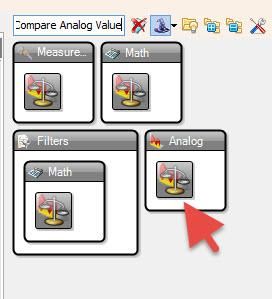
Add 2X "Compare Analog Value" component
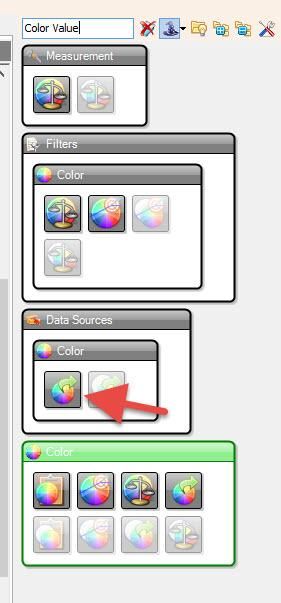
Add 2X "Color Value" component
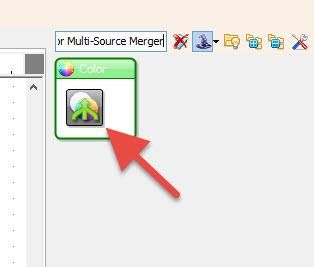
Add "RGBW Color Multi-Source Merger" component
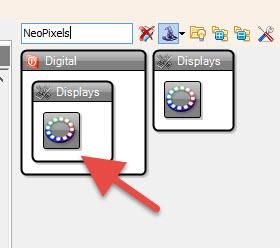
Add "NeoPixels" component
In Visuino Set Components
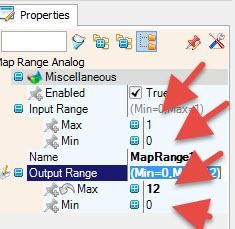
Select "MapRange1" and in the properties set Input Range> Max to 1, and Input Range> Min to 0
Select "MapRange1" and in the properties set Output Range> Max to 12, and Output Range> Min to 0
Note: Output Range> Max to 12 is the number of LED on the LEDRing
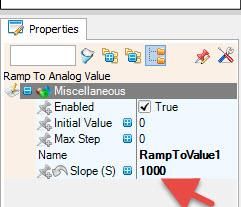
Select "RampToValue1" and in the properties window set Slope (S) to 1000
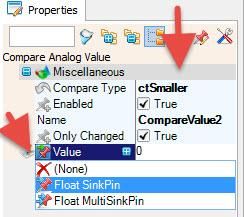
Select "CompareValue1" and in the properties window set Compare Type to ctBigger and Value to 10
also select Value field and click on the Pin Icon and select "Float Sink Pin"Select "CompareValue2" and in the properties window set Compare Type to ctSmaller
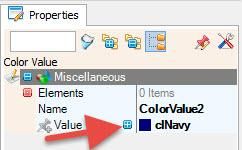
also select Value field and click on the Pin Icon and select "Float Sink Pin"Select "ColorValue2" and in the properties window set Value to clNavy
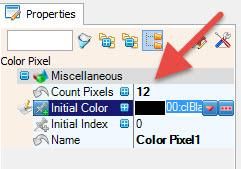
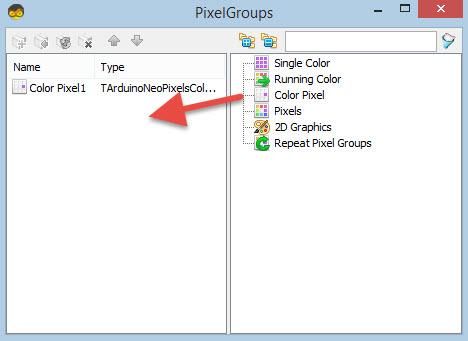
Double click on the "NeoPixels1" and in the PixelGroups window drag ColorPixel to the left side, and in the properties window then set Count Pixels to 12
Note: Count Pixels 12 is the number of the LED on the LEDRing
In Visuino Connect Components
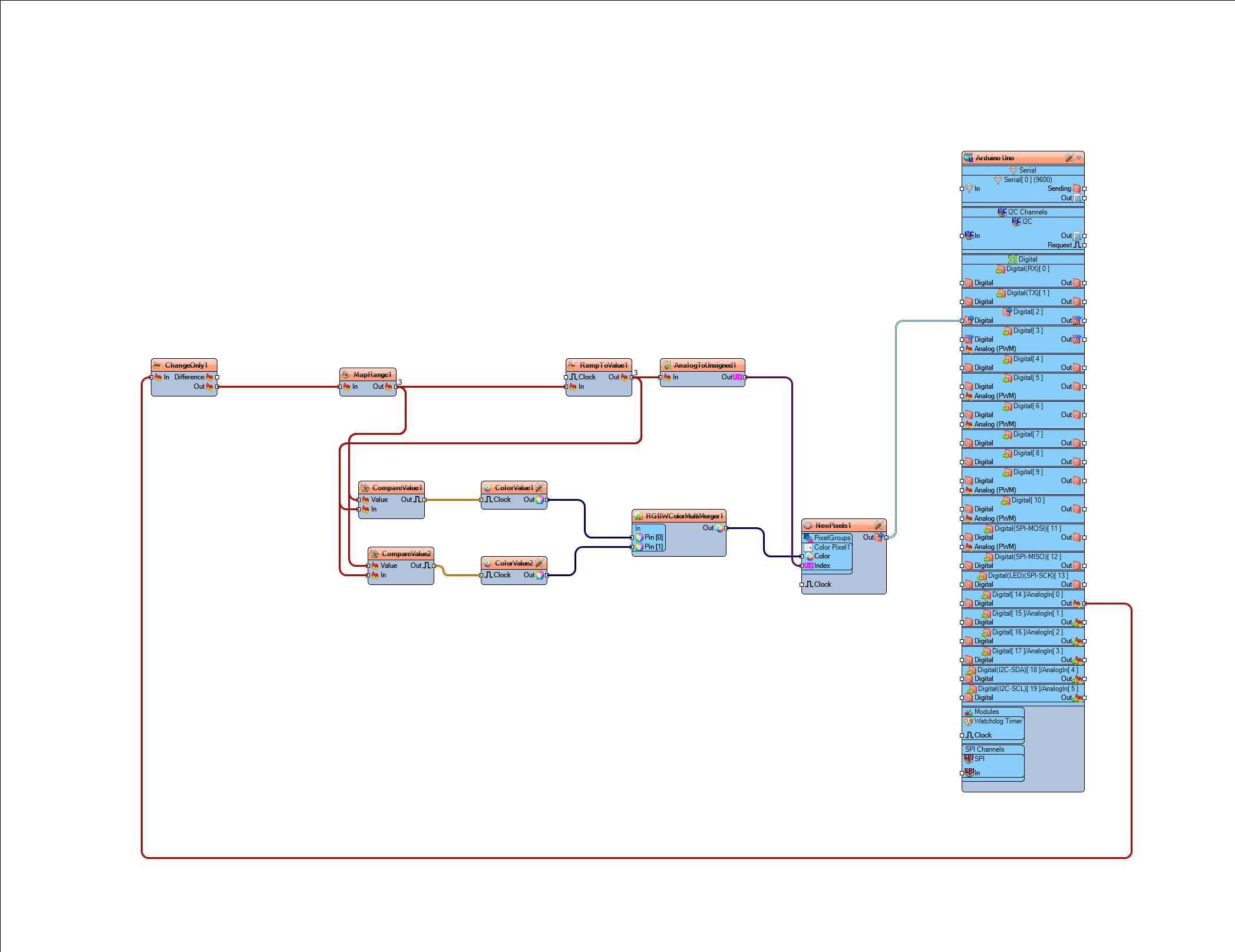
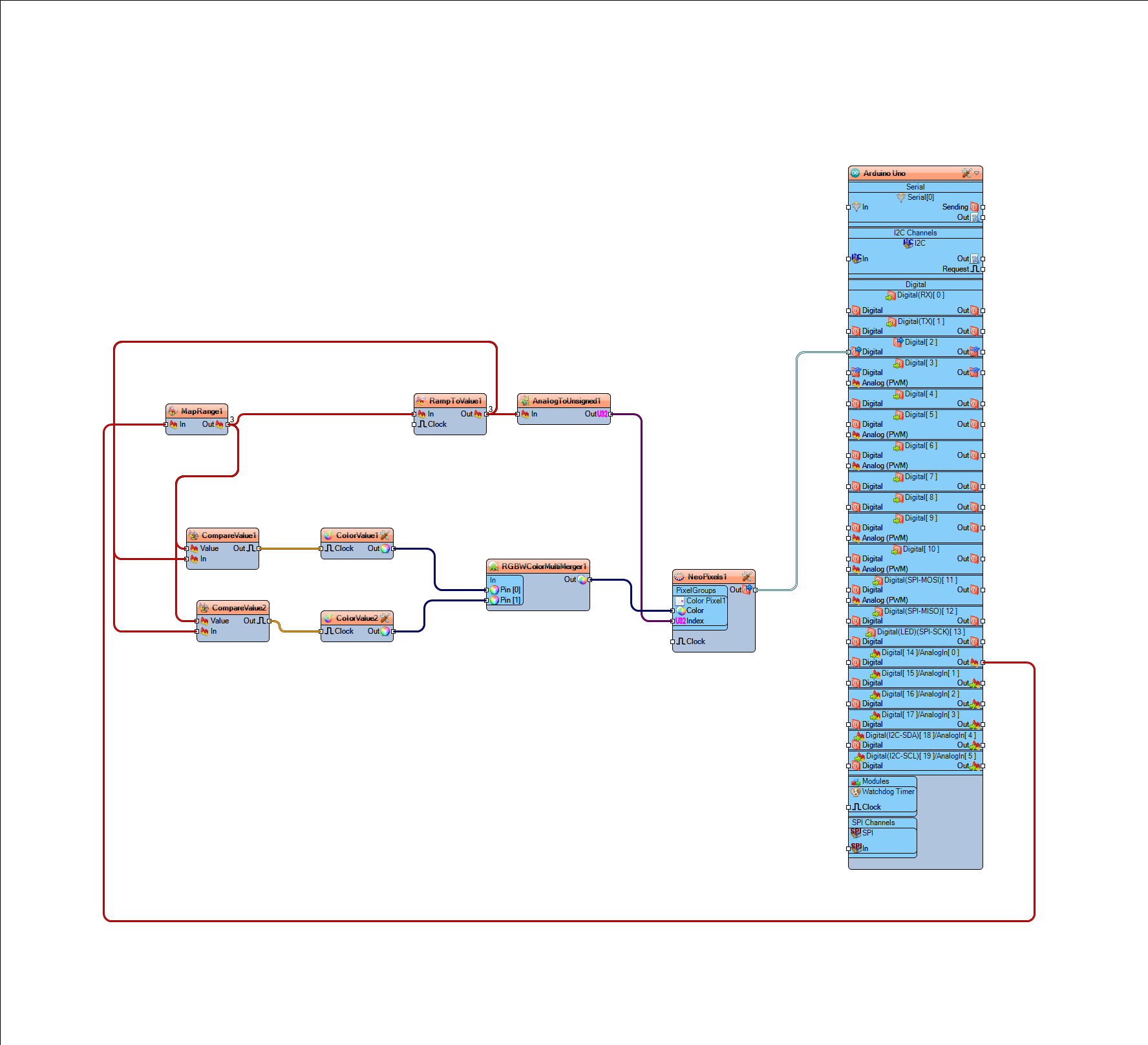
Connect Arduino Analog pin [0] Out to MapRange1 pin In
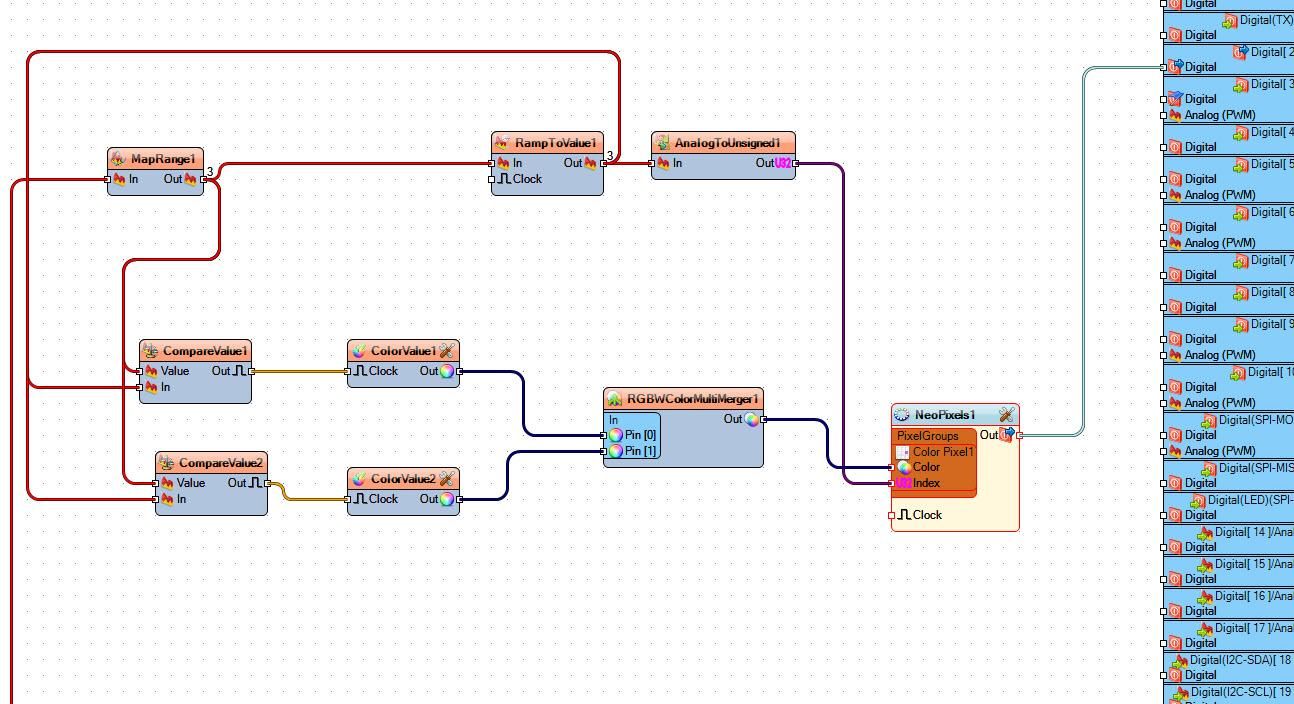
Connect "MapRange1" pin Out to RampToValue1 pin In, and CompareValue1 pin Value and CompareValue2 pin Value
Connect "RampToValue1" pin Out to CompareValue1 pin In and CompareValue2 pin In and AnalogToUnsigned1 pin In
Connect AnalogToUnsigned1 pin Out to NeoPixels1 pin Index
Connect CompareValue1 pin Out to ColorValue1 pin Clock
Connect CompareValue2 pin Out to ColorValue2 pin Clock
Connect ColorValue1 pin Out to RGBWColorMultiMerger1 pin [0]
Connect ColorValue2 pin Out to RGBWColorMultiMerger1 pin [1]
Connect RGBWColorMultiMerger1 pin Out to NeoPixels1 pin Color
Connect NeoPixels1 pin Out to Arduino Digital Pin 2
Generate, Compile, and Upload the Arduino Code
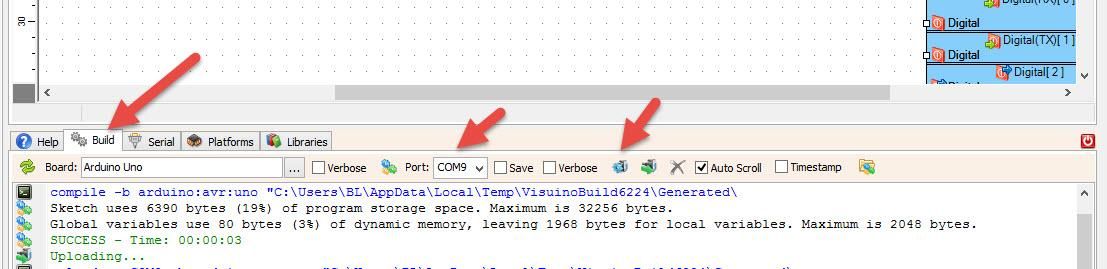
In Visuino, at the bottom, click on the "Build" Tab, make sure the correct port is selected, then click on the "Compile/Build and Upload" button.
Play
If you power the Arduino UNO module and slide a potentiometer, the LED Ring will indicate the Potentiometer position.
You can use this approach in Audio Applications where you need to indicate the Volume position, or any other project where some kind of visual indicator is needed.
Congratulations! You have completed your project with Visuino. Also attached is the Visuino project that I created for this; you can download it and open it in Visuino: https://www.visuino.eu
Set the Reversed Direction
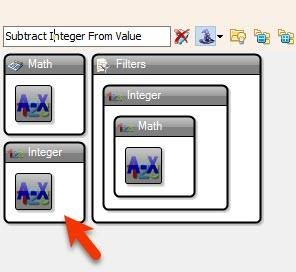
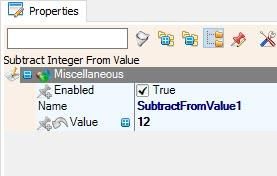
Add "Subtract Integer From Value" component, and in the properties window set "Value" to 12 (The number of LEDs on your LED Ring)
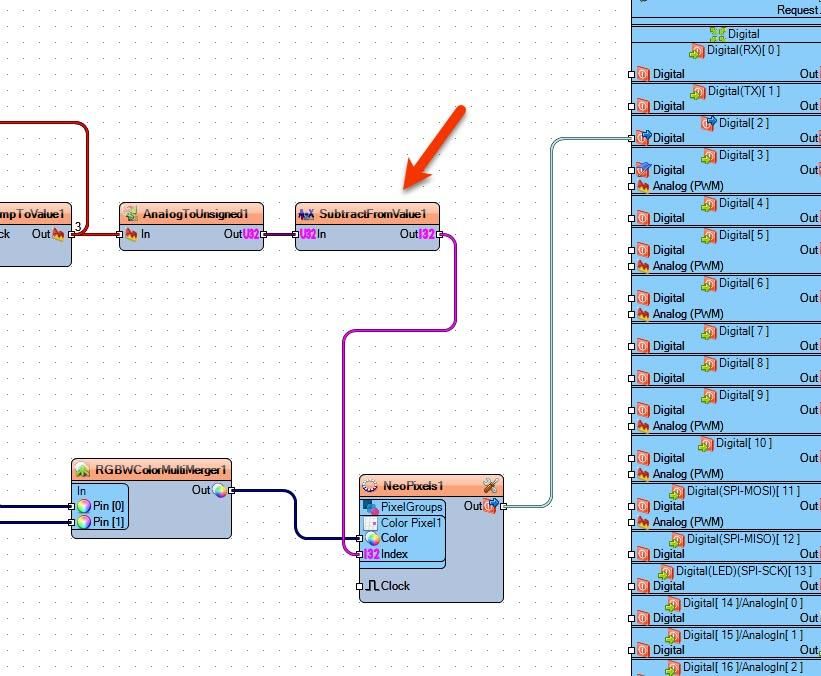
Put the component between the "AnalogToUnsigned1" and "NeoPixels1"
Connect "AnalogToUnsigned1" pin [Out] to "SubtractFromValue1" and Connect "SubtractFromValue1" pin [Out] to "NeoPixels1" > "Color Pixel1" pin [Index]
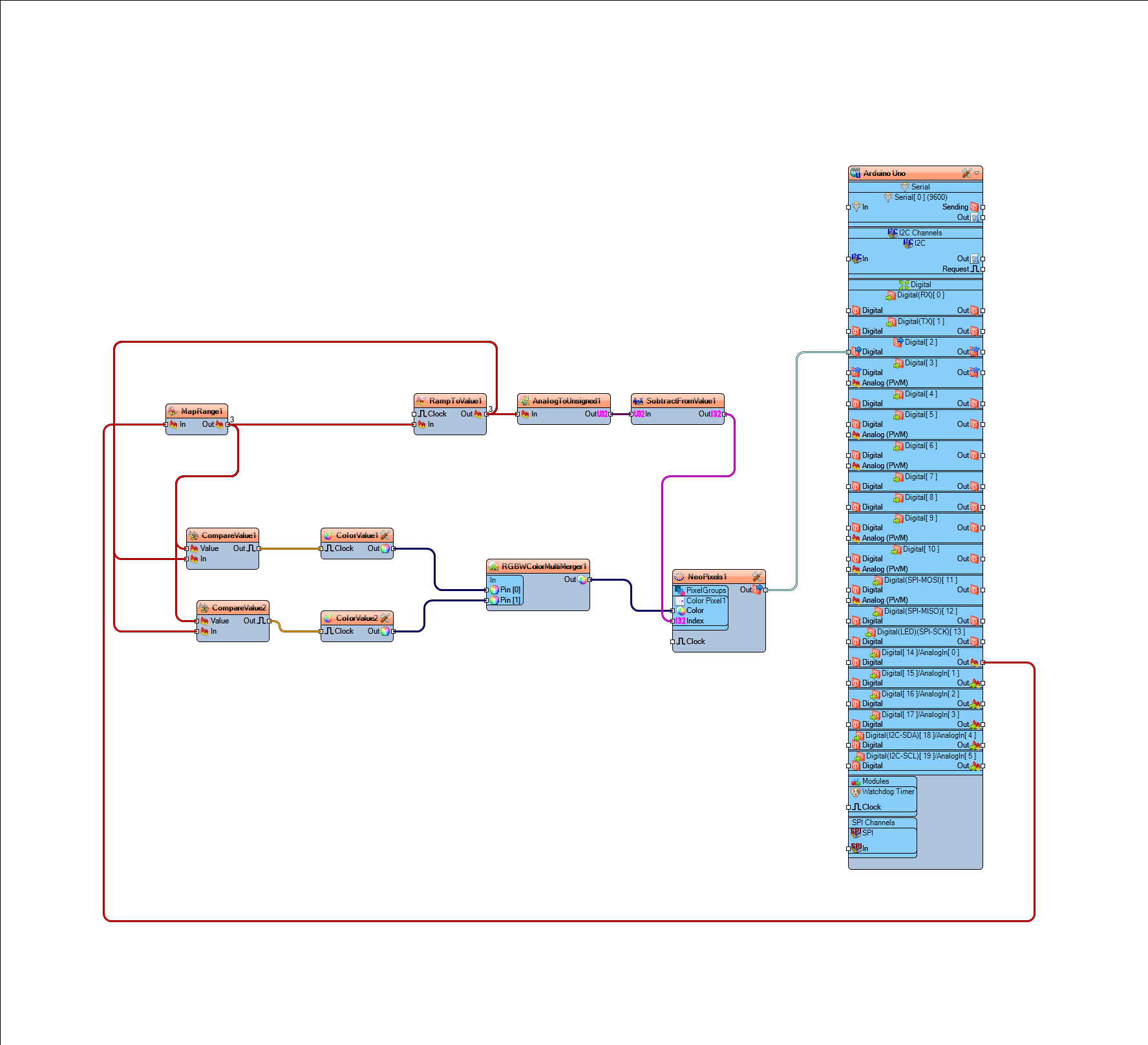
Also attached is the Visuino project for the reversed LED ring. Make sure to change the number of LED pixels if you have a different LED ring
Reversed Volume Indicator Video
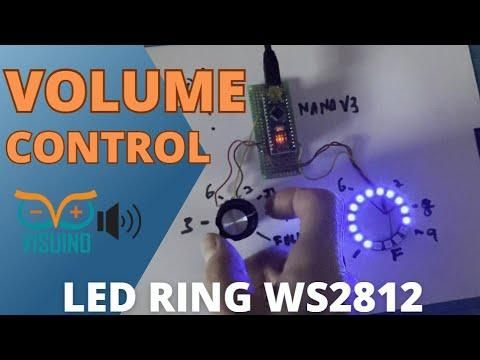
Reversed Volume Indicator project made by Visuino user JP
Optional Improvements
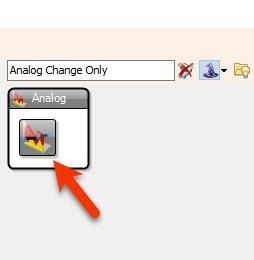
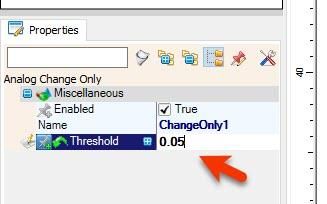
To overcome the LED blinking on the LED Ring, you can add "Analog Change Only" component and, in the properties, set the "Threshold" to 0.05 (or any other value that suits you).
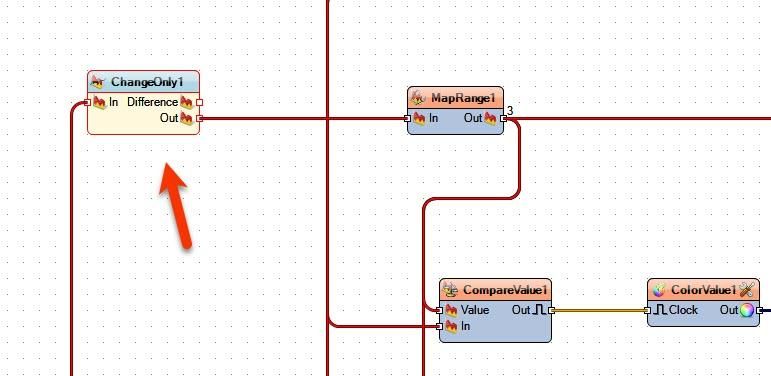
Connect Arduino Analog pin [0] Out to "ChangeOnly1" pin [In]
Connect "ChangeOnly1" pin [Out] Out to MapRange1 pin [In]