Settings
 Fast Delivery
 Payment Types


 Marketplace Product

Simple Step Counter Using Arduino
License: GNU Lesser General Public License I2C / TWI Microcontrollers Motors Arduino ESP32
In this tutorial we will learn how to make a simple step counter. This project is very useful in robotics or anywhere where you need to count something like how many steps the motor made or how many times the sensor detected something.
Watch the Video!
Learn more about Visuino: What is Visuino
What You Will Need
Some sort of frequency generator; it can be another Arduino, but in our case we will use a 555 module.
You can also connect an IR Encoder sensorArduino Uno or any other Arduino board
Visuino software: Download here
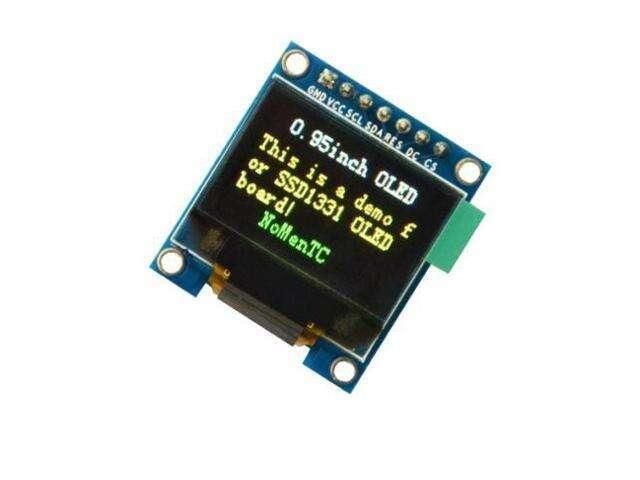
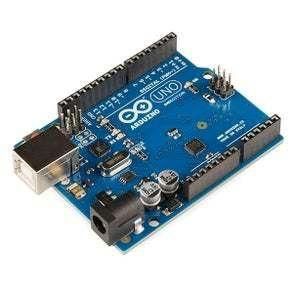
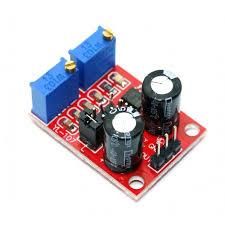
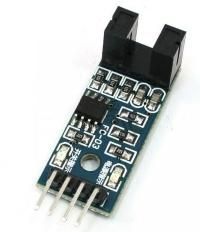
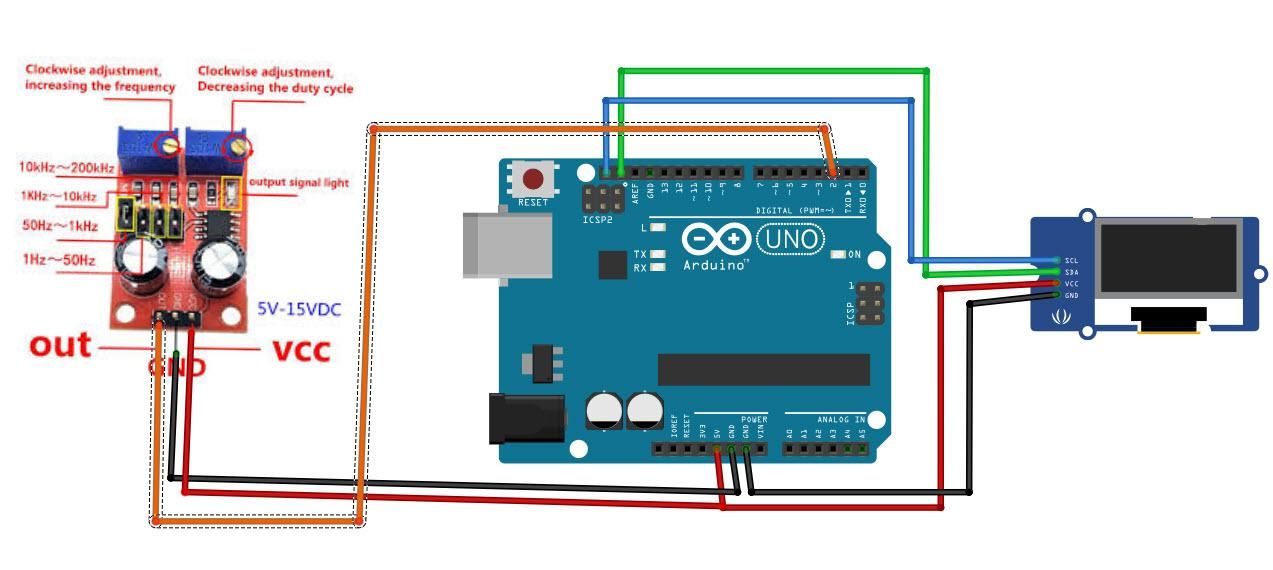
The Circuit - Variation1 Using 555 Module As a Step Source
Connect 555 module pin[VCC] to Arduino pin[5V]
Connect 555 module pin[GND] to Arduino pin[GND]
Connect 555 module pin[OUT] to Arduino Interrupt pin[2]
Connect OLED Display pin[VCC] to Arduino pin[5V]
Connect OLED Display pin[GND] to Arduino pin[GND]
Connect OLED Display pin[SDA] to Arduino pin[SDA]
Connect OLED Display pin[SCL] to Arduino pin[SCL]
Note if you are going to use some other source of frequency, make sure that you connect (share) the GND with arduino GND.
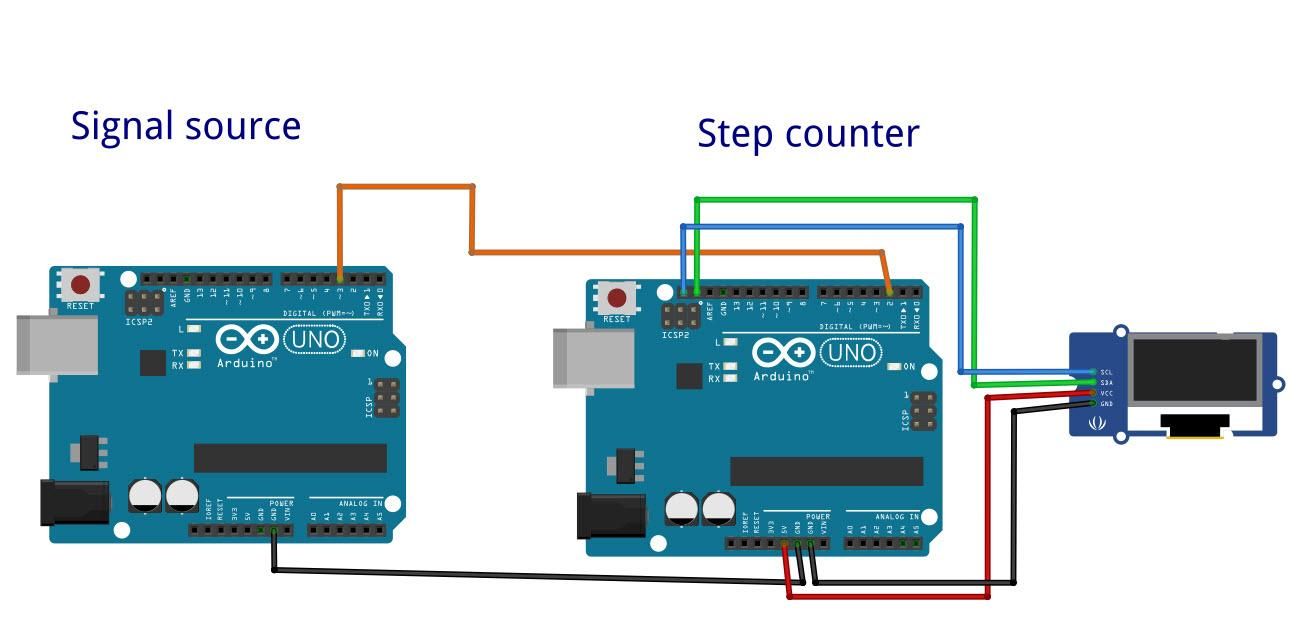
The Circuit - Variation2 Using Another Arduino As a Step Source
Connect Arduino1 (Source) Digital pin[3] to Arduino2 Interrupt pin[2]
Connect Arduino1 (Source) pin[GND] to Arduino2 pin[GND]
Connect OLED Display pin[VCC] to Arduino2 pin[5V]
Connect OLED Display pin[GND] to Arduino2 pin[GND]
Connect OLED Display pin[SDA] to Arduino2 pin[SDA]
Connect OLED Display pin[SCL] to Arduino2 pin[SCL]
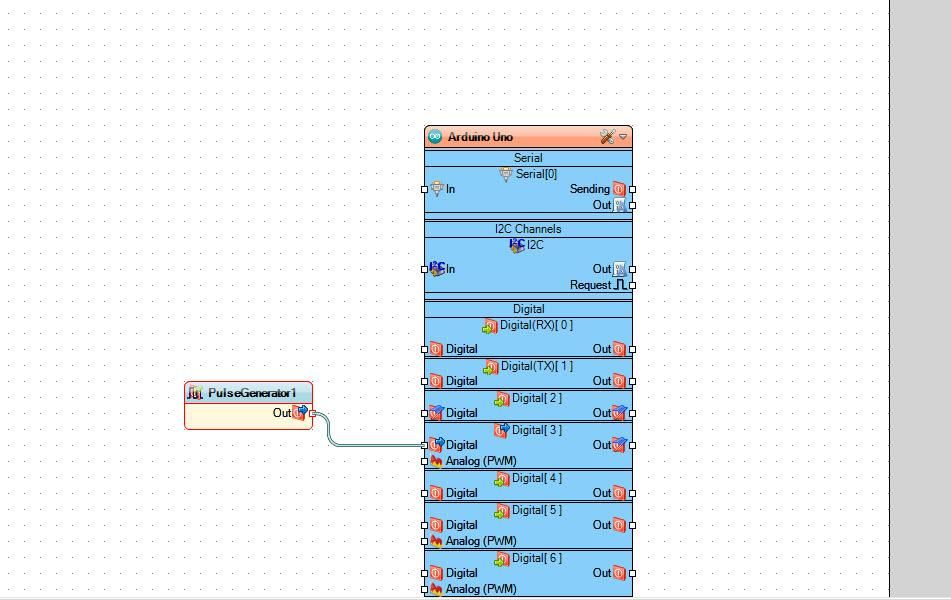
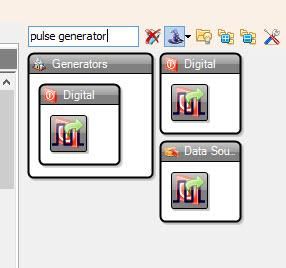
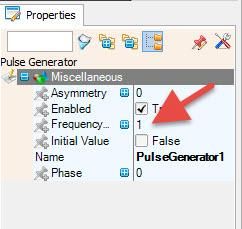
To program the source Arduino to put out signals just Open Another Visuino and place a "Pulse generator" component and connect its Out pin to Arduino digital pin 3, and in the properties you can set the frequency of the pulses.
The Circuit - Variation3 Using IR Encoder Module As a Step Source
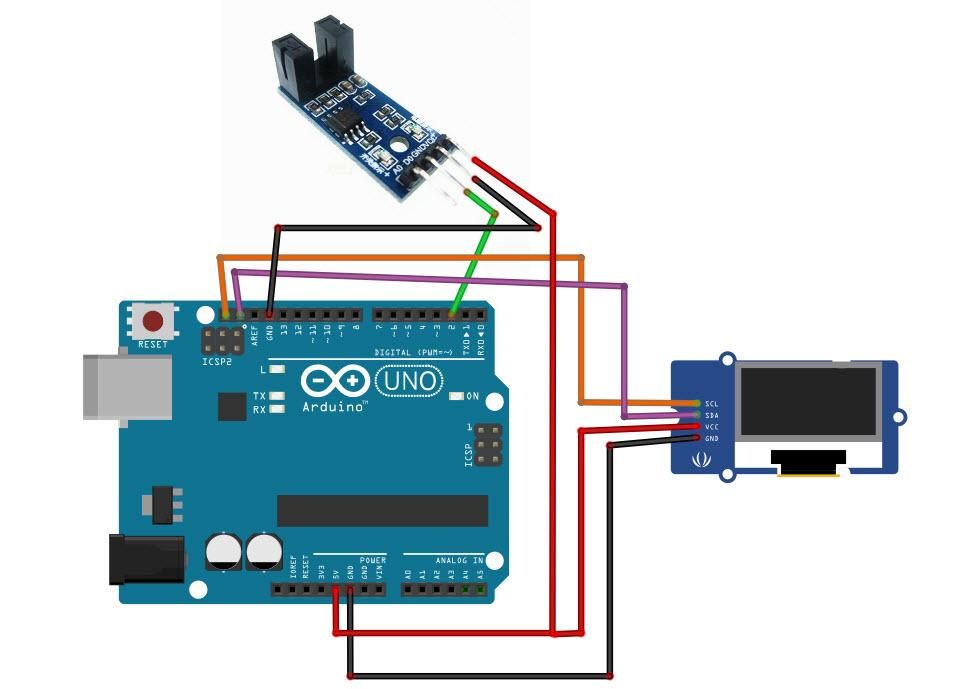
Connect IR Encoder pin[VCC] to Arduino pin[5V]
Connect IR Encoder pin[GND] to Arduino pin[GND]
Connect IR Encoder pin[D0] to Arduino Interrupt pin[2]
Connect OLED Display pin[VCC] to Arduino pin[5V]
Connect OLED Display pin[GND] to Arduino pin[GND]
Connect OLED Display pin[SDA] to Arduino pin[SDA]
Connect OLED Display pin[SCL] to Arduino pin[SCL]
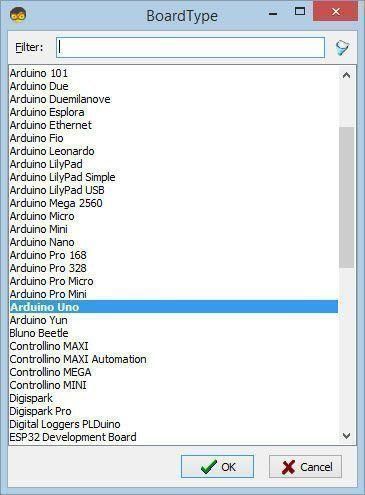
Start Visuino, and Select the Arduino UNO Board Type
The Visuino: https://www.visuino.eu also needs to be installed. Download the free version or register for a Free Trial.
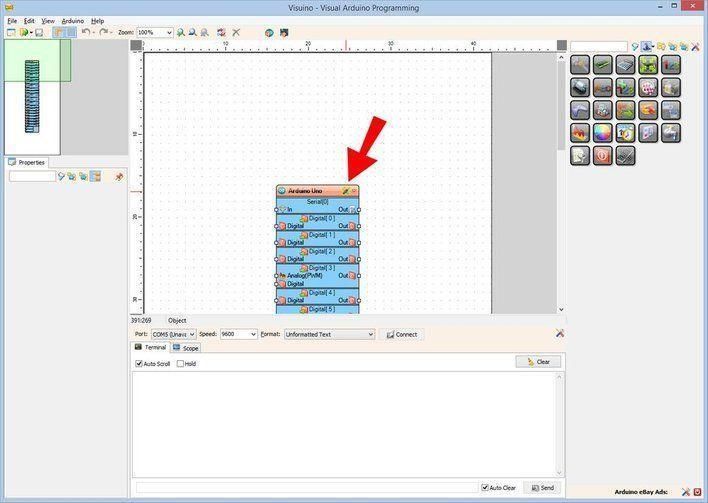
Start Visuino as shown in the first picture. Click on the "Tools" button on the Arduino component (Picture 1) in Visuino. When the dialog appears, select "Arduino UNO" as shown in Picture 2
in Visuino Add,Set & Connect Components
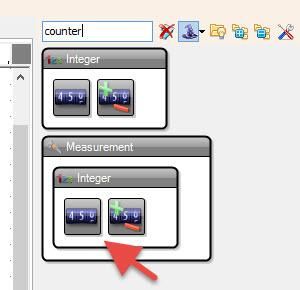
Add "Counter" component
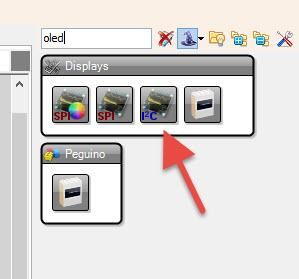
Add "OLED" component
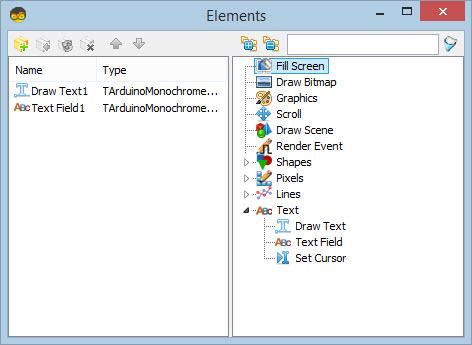
Double click on the "DisplayOLED1" and in the Elements window
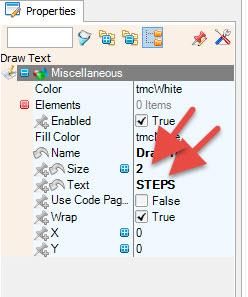
drag "Draw Text" to the left side, and in the properties window set size to 2 and text to: Steps
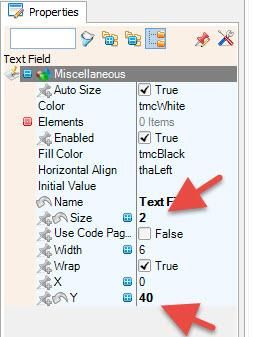
drag "Text Field" to the left side and in the properties window set size to 2 and Y to 40
Close the Elements window
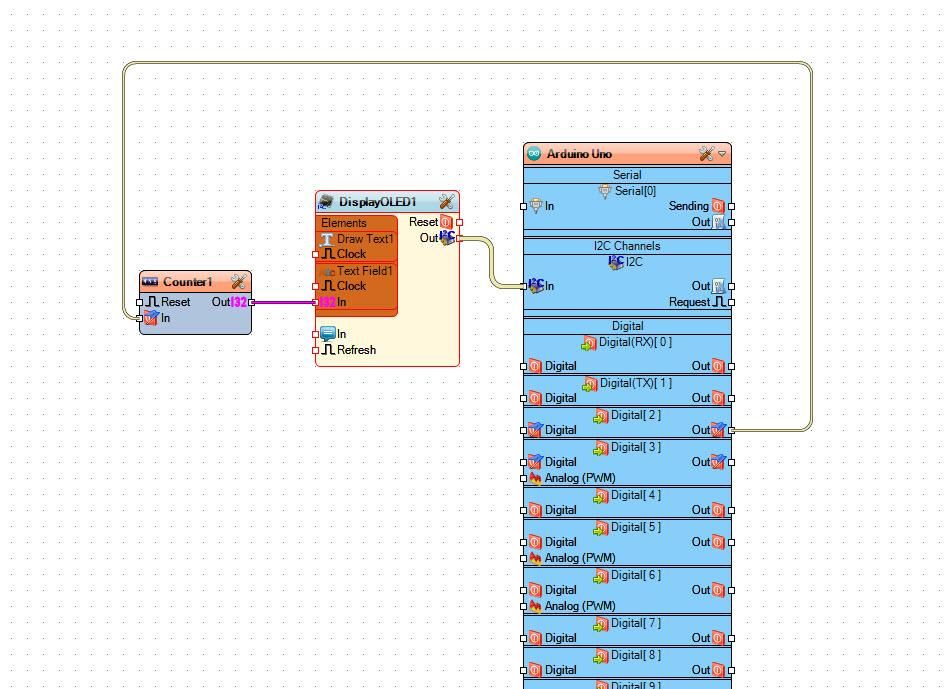
Connect Arduino Digital Out Pin 2 to "Counter1" pin In
Connect "Counter1" pin Out to "DisplayOLED1" > Text Field1 pin In
Connect "DisplayOLED1" pin I2C Out to Arduino I2C In
Generate, Compile, and Upload the Arduino Code
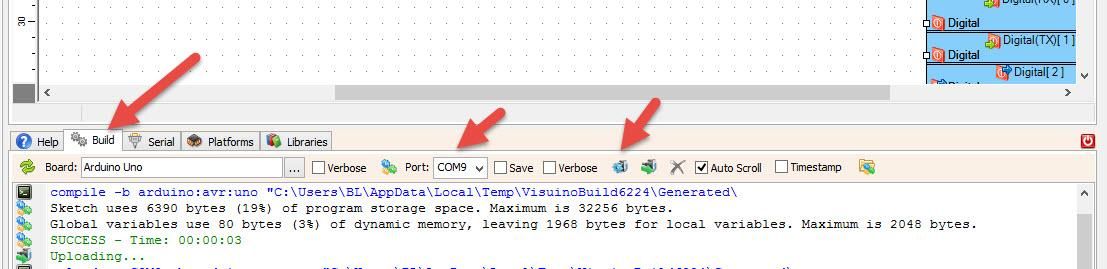
In Visuino, at the bottom, click on the "Build" Tab, make sure the correct port is selected, then click on the "Compile/Build and Upload" button.
Play
If you power the Arduino UNO module, the OLED Display will start to show the frequency in Hz that the 555 module produces, or another Arduino or IR Encoder.
Note: With the 555 module, you can adjust the frequency by rotating trimmers.
Congratulations! You have completed your project with Visuino. Also attached is the Visuino project that I created for this; you can download it and open it in Visuino: https://www.visuino.eu
Attached Files: Step Counter and Steps Source project, in case you use another Arduino as a source of steps